CowSync Guide › Getting started
Account
Your plan and usage, profile details, tips, team contacts, billing and password.
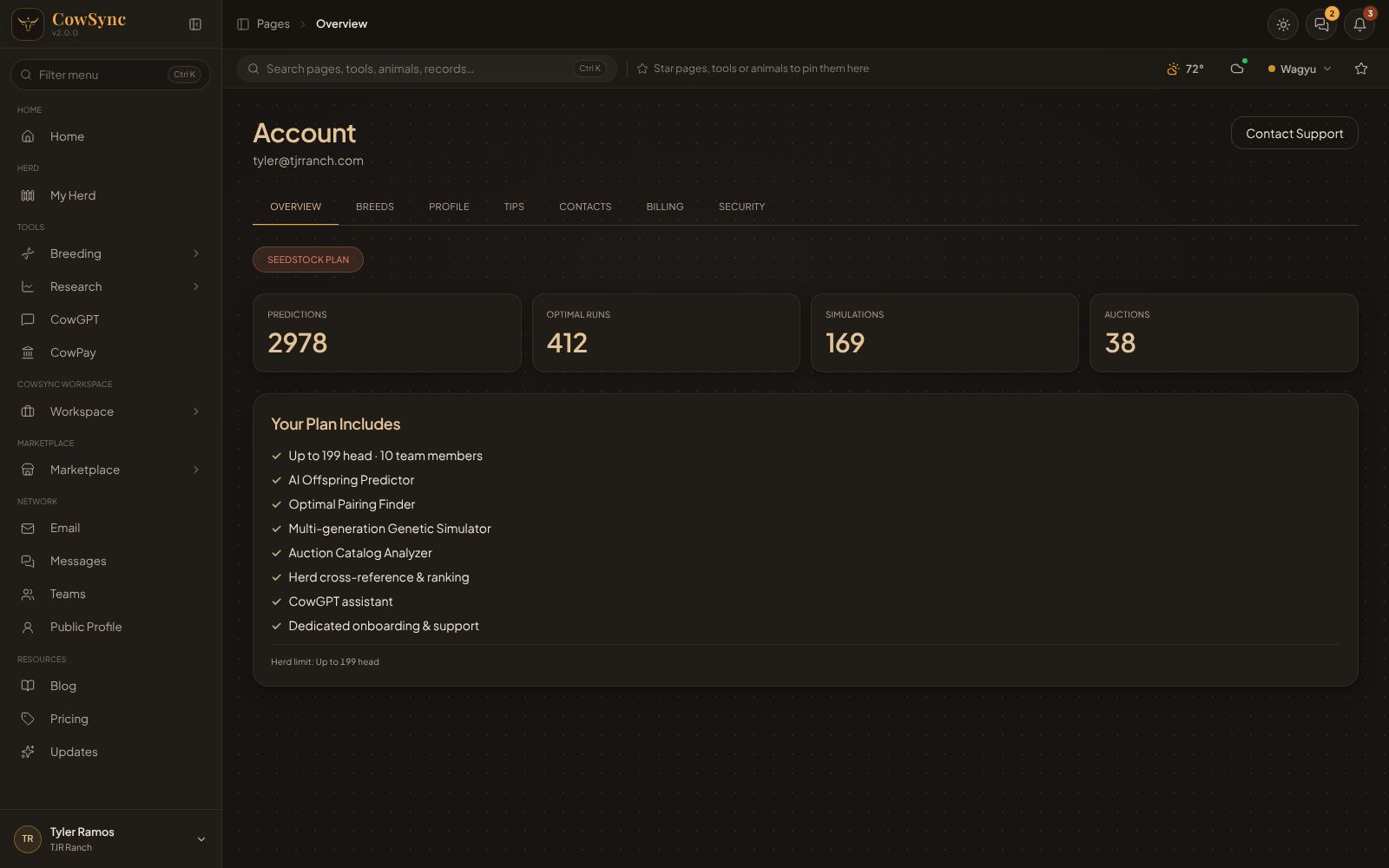
The Account page holds your personal details, your plan and your password. Open it from your name or picture → Account & Billing, or type "account" in the search box (Ctrl K). The Contact Support button at the top right opens your chat with the CowSync team. The page has seven tabs across the top.
The tabs
Overview
Shows your plan name (for example Seedstock Plan), counters for Predictions, Optimal Runs, Simulations and Auctions you've run, a list headed Your Plan Includes, and your herd limit.
| Plan | Herd limit | Team members |
|---|---|---|
| Free | Up to 5 animals | — |
| Homestead | Up to 20 head | 2 |
| Rancher | Up to 50 head | 3 |
| Breeder | Up to 150 head | 5 |
| Seedstock | Up to 199 head | 10 |
| Enterprise | 200+ head | Unlimited |
Paid plans include the Predictor, Optimal Pairing, Simulator, Auction Analyzer, herd ranking and CowGPT. See Pricing (under Resources in the menu) for current prices.
Breeds
Shows the breeds CowSync works with. Wagyu is your current breed (AWA and Breedplan data). Angus is marked Coming soon. This is display only for now.
Profile
- Fill in Full Name, Phone Number, Operation Name and Location. All four are required; if one is blank, CowSync tells you and won't save.
- Click Save Changes. You'll see Profile updated.
Your Email can't be changed here; ask us in the support chat if you need to. The Danger Zone box has Sign Out, which signs you out on this device.
Tips
A short tip pops up in the bottom-right corner every few minutes while you work. Turn Show periodic tips off here if you'd rather not see them.
Contacts
A shared address book for each team: buyers, vets, breeders. These are the people you can email reports to from any Report button.
- If you belong to more than one team, pick the team first.
- Type an email (and, if you like, a name and a note like "buyer" or "vet") and click Add contact. Use Edit or Remove on any contact.
- Click Sent to see every report your team has emailed. Click Contacts to go back to the list.
- You need a team first. If you see No teams yet, create one under Teams. Only team admins can add contacts.
Billing
Shows your plan, price and herd limit. Click Change plan to go to the Pricing page. To cancel, click Cancel — contact us. It opens a new email to the CowSync team, who will take care of it.
Security
- Under Change Password, click Send Verification Code. A code goes to your email.
- Type the 6-Digit Code and click Verify Code (or Resend).
- Type your New Password twice and click Change Password.
The password must be at least 6 characters. Under Session: you stay signed in on a device for 7 days, and there's another Sign Out button.