CowSync Guide › Workspace basics
AI assistant in Workspace tools
Type or say what you want in plain English. The assistant shows you the changes it plans, and nothing is saved until you click Apply.
Most Workspace tools have an AI assistant bar near the top, just under the tool's name. The Workspace home has one too. Type (or say) what you want in everyday words: "Log cow 52 at 1,120 lb today, BCS 6" or "Who is still in withdrawal?". The assistant reads your records for that tool and then does one of two things. It answers your question, or it lists the records it would add, change or delete for you to check. Nothing is saved until you click Apply.
Opening it
When it's closed, the bar reads "AI assistant — tell it what to log, change or find in …". Click it, or the arrow on the right, to open it. The tool remembers whether you left it open or closed.
What you can type
Each tool shows a few examples as small rounded buttons under the box. Click one and it is sent straight away, so you can see how it works. Some examples from the app:
| Tool | Examples |
|---|---|
| Herd Health | "Vaccinate the 2025 heifers with 7-way today" · "Who is still in withdrawal?" · "Treat cow 33 for pinkeye with LA-200, 6 ml" |
| Observations | "Cow 18 is lame on the right hind, follow up in 3 days" · "What observations are still open?" |
| Weights | "Log cow 52 at 1,120 lb today, BCS 6" · "Which calves have the best ADG?" |
| Semen tank | "How many straws of each sire do I have?" · "Add 20 straws of Itoshigenumi in tank 2 canister 3" |
| Heat & AI | "Log AI for cow 14 to sire Michifuku today" · "Which cows are due for a return-heat check this week?" |
| Preg checks | "Mark cows 12, 15 and 22 pregnant from today's preg check" · "Who is due to calve in the next 30 days?" |
| ET / IVF | "Record a flush from donor 88 with 9 grade-1 embryos" · "What was my average embryos per flush?" |
| Workspace home | "What needs doing this week across the ranch?" · "We sold lot 4 for $9,500 to Smith Ranch — record it" |
You can ask questions, log several records at once, change records ("move all of tomorrow's tasks to Friday") or remove them. The assistant remembers the last few things you said, so you can follow up with "and do the same for cow 19".
Step by step
- Click in the box and type what you want. To speak instead, click the microphone (voice works in Chrome or Edge). When you stop talking, it sends what you said.
- Press Enter or click the gold send arrow. While it works, you'll see "Reading your … records…".
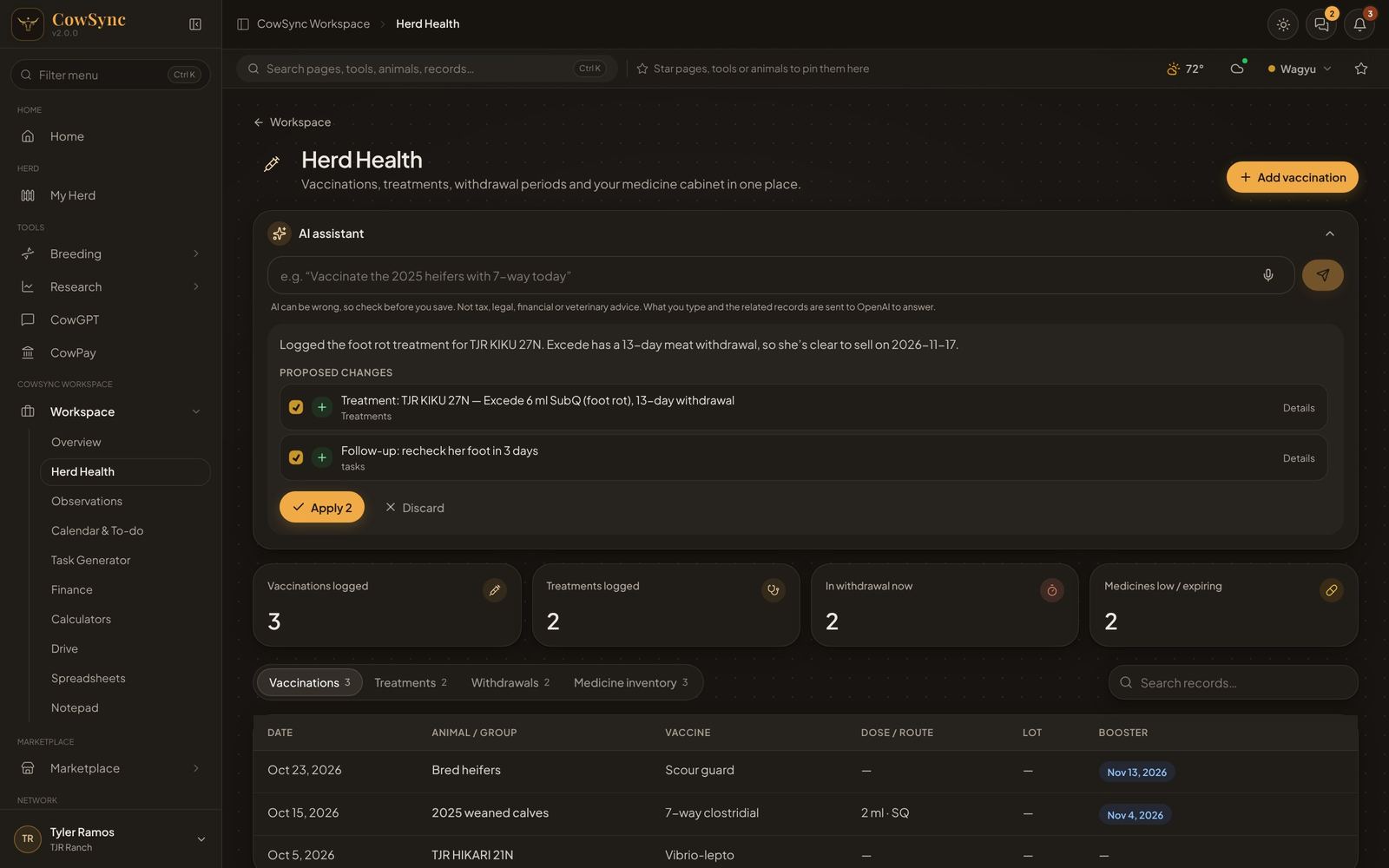
- Read the reply. If it has changes for you, they're listed under Proposed changes. Each one has a symbol: a green + means a new record, a blue pencil means a change, and a red trash can means a delete. Under each one, small grey text names where it goes (for example "Treatments" or "tasks").
- Click Details on any change to see every field it will save (Hide closes it again). Untick any change you don't want.
- Click Apply N to save the ticked changes, or Discard to throw them all away.
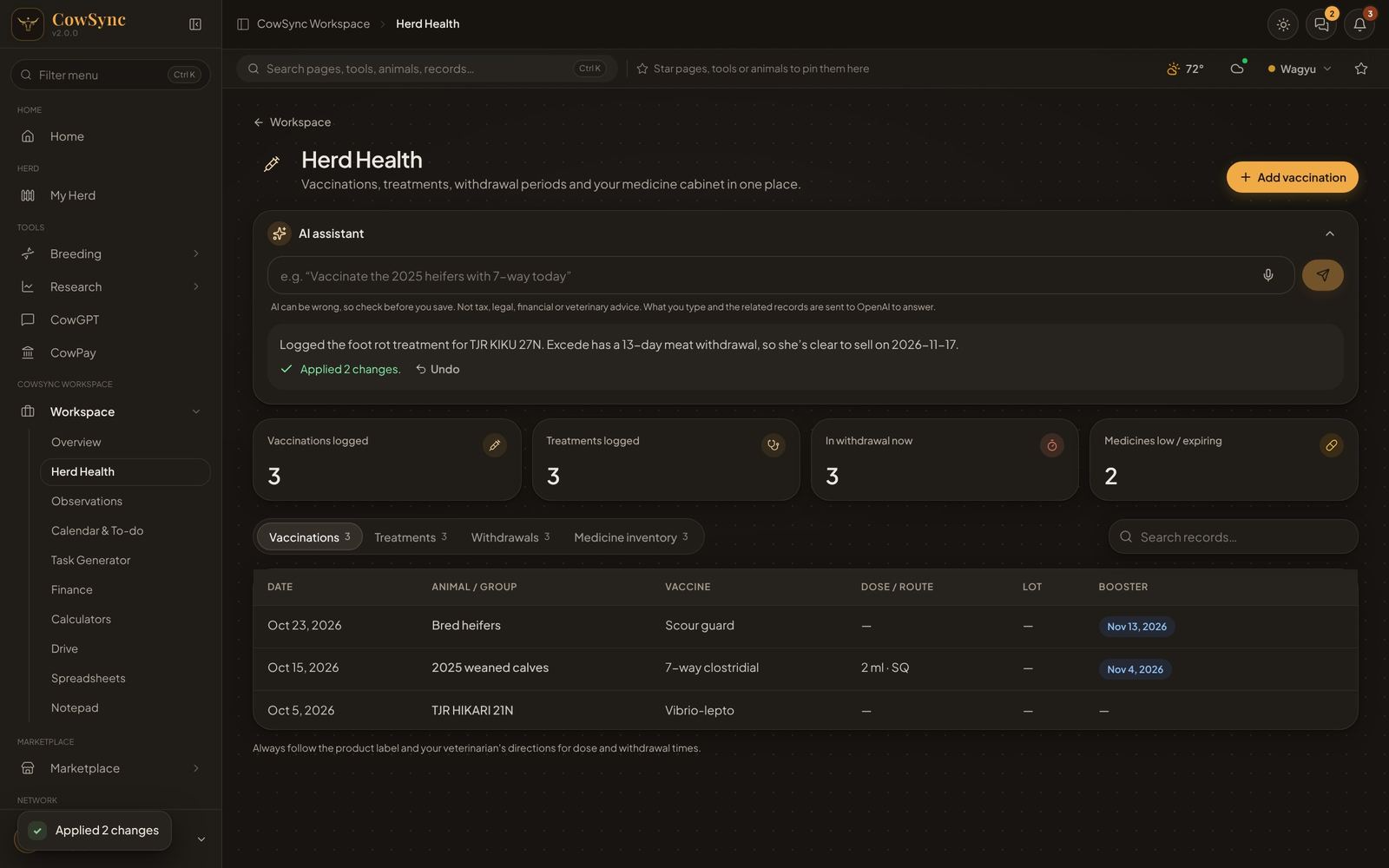
- You'll see "Applied N changes." The table below updates right away.
- Changed your mind? Click Undo next to that message to reverse everything it just did.
The safety note
Under the box is this line: "AI can be wrong, so check before you save. Not tax, legal, financial or veterinary advice. What you type and the related records are sent to OpenAI to answer." Here's what it means in practice:
- Always open Details and check tags, doses, dates and withdrawal days before you apply.
- Follow the product label and your vet for doses and withdrawal times, not the assistant.
- To answer you, the words you type and the records from that tool are sent to OpenAI, the outside company that runs the AI.
Good to know
- The assistant needs a connection. In Cloud mode or with no signal, it tells you so. Everything else keeps working.
- Changes it saves are normal records. They also set off the usual automations, like a preg-check reminder after an AI.
- Be specific: name the animal, the product and the date. "Today" and "yesterday" work.