CowSync Guide › Documents & records
PDF signing
Open any PDF, place your signature, initials, date, text or checkmarks on it, then download the signed copy or save it to Drive.
PDF Signing is for paperwork that arrives as a PDF, such as a bill of sale, a lease from a neighbor or a health form. You put your signature and anything else the form needs onto it, then save a signed copy. Nothing needs printing or scanning. To open it, click the PDF signing tile on the Workspace page.
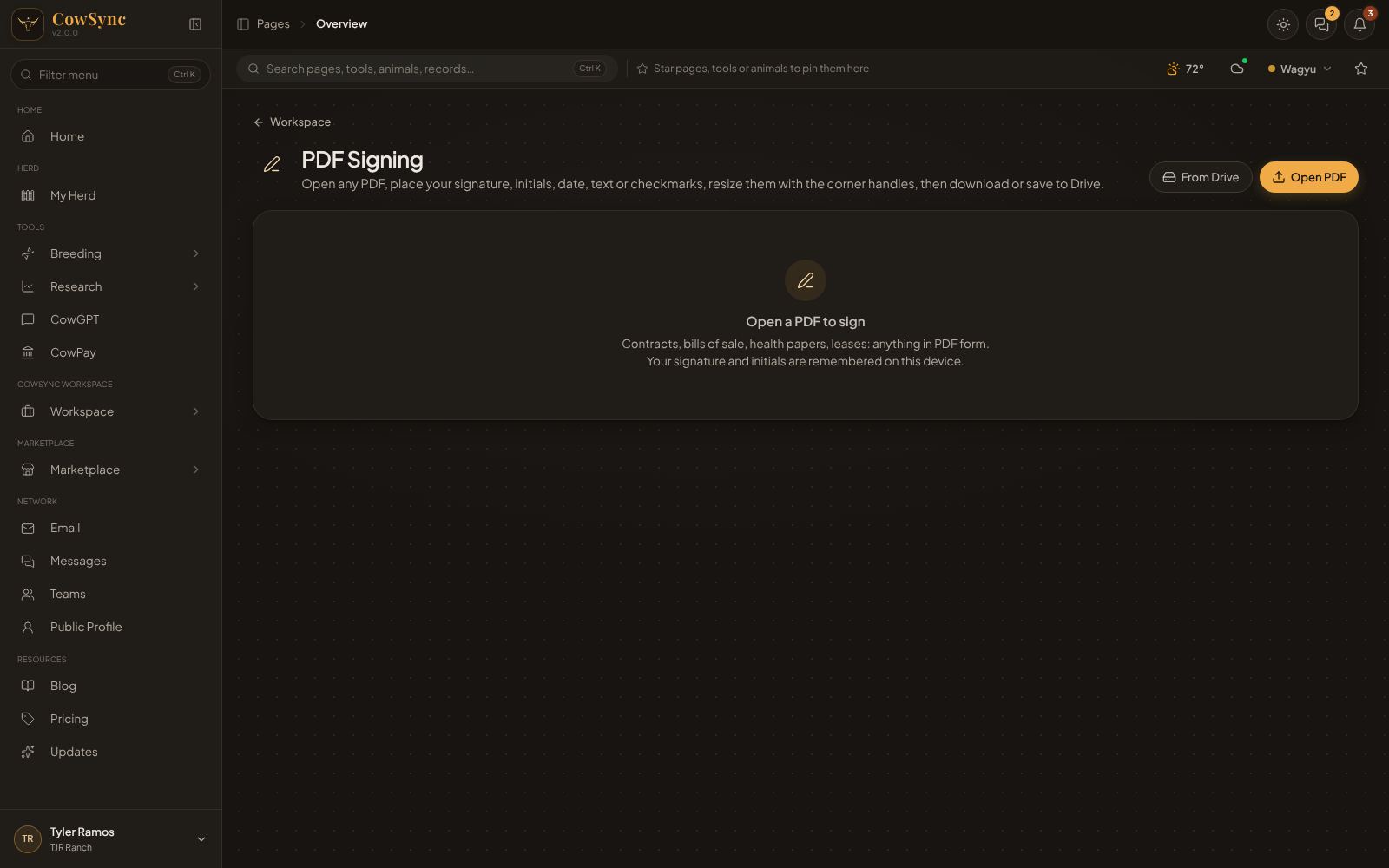
Open a PDF
- Open PDF picks a PDF from your computer or phone.
- From Drive lists every PDF in your Drive, with its folder. Click one to open it.
The pages show one under another, with “Page 1 of 3” above each. PDFs locked with a password cannot be opened.
Set your signature and initials
- Click Set signature (or Set initials).
- Choose Draw and sign with your finger or mouse, or Type and type your name. Clear starts again.
- Click Done.
They are remembered on this phone or computer for next time. On another device you set them once more. Use Redo signature or Redo initials to change them. Ones already on the page stay as they were.
Place items on the page
- Pick an item in the left panel: Signature, Initials, Date (today’s date), Text or Checkmark.
- Click the page where it should go. If you have not set a signature yet, the signature window opens first. For Text, type the words (a printed name, title or ranch name) and click Place.
- Drag the item to move it. Drag one of the gold corner dots to make it bigger or smaller.
Checkmark stays picked so you can tick several boxes in a row. Click it again to stop.
Fine-tuning an item
Click an item to pick it. The left panel then shows:
- Buttons for smaller (−), larger (+), copy and delete. Text items also get Edit text (or double-click the text).
- Text ink: Black or Blue, for text, dates and checkmarks.
On a keyboard, the arrow keys nudge the item (hold Shift for bigger steps), + and − change its size, Delete removes it and Esc lets go of it. Zoom with the − and + buttons above the pages, or click Fit to fit the page to the screen.
Save the signed copy
The panel counts how many items you have placed. Then click one of these:
- Download signed PDF saves a copy named “… (signed).pdf” to your computer or phone.
- Save to Drive puts it in Drive, in a folder called Signed documents, with the category Agreement / contract.