CowSync Guide › Herd health & breeding
Animal observations
Quick field notes on what you see (lame, off feed, in heat, calving), with severity and follow-up dates.
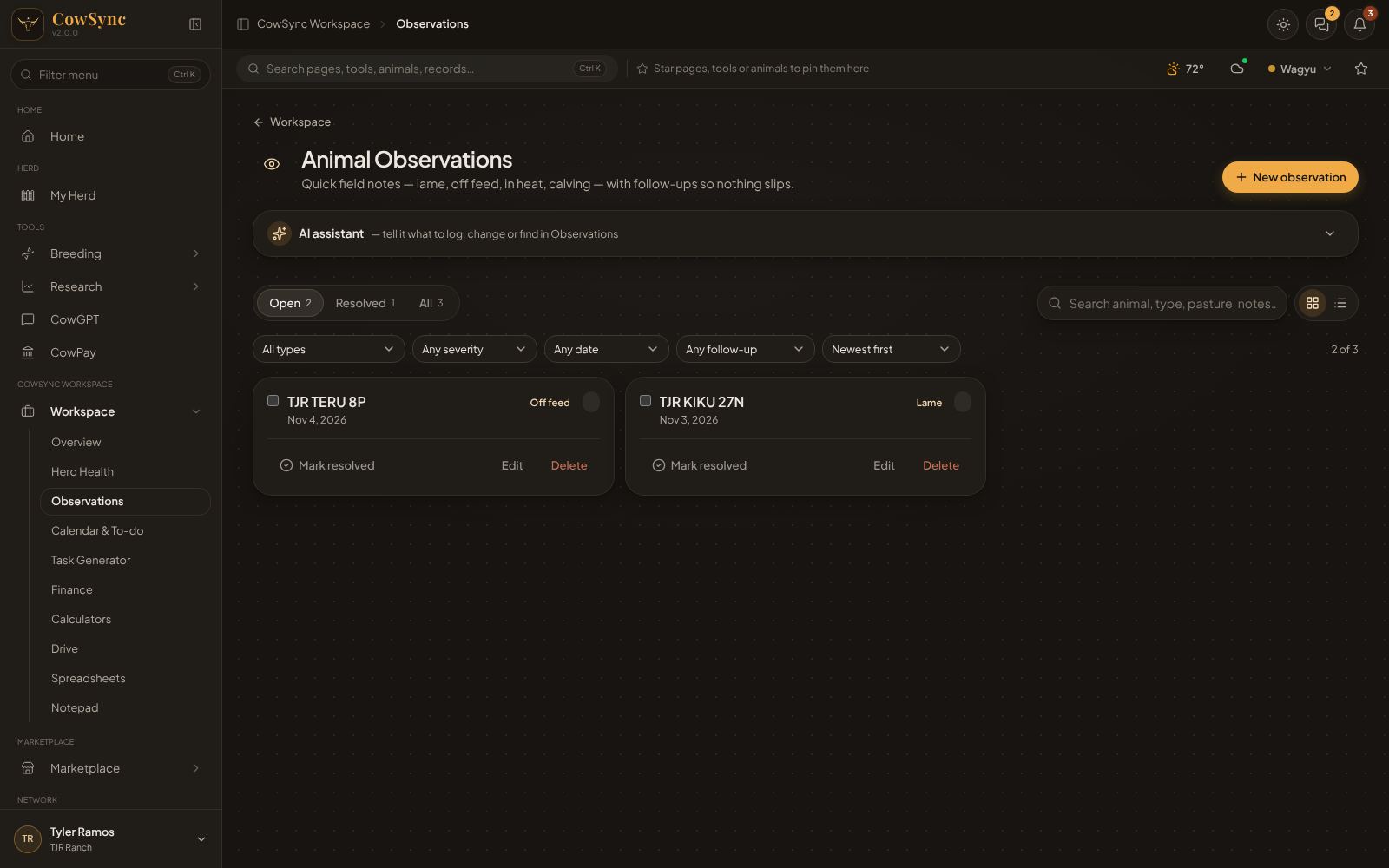
Animal Observations is your pocket notebook for the pasture. Open it from the Animal observations tile on the Workspace home. Jot down what you saw, how serious it is and when to check again. Open items stay in front of you until you mark them resolved.
Log an observation
- Click New observation (top right).
- Fill in Date and Animal (or use Several animals).
- Pick What did you see?: Lame, Off feed, Cough / respiratory, Scours, Pinkeye, Injury, Heat observed, Bred / AI, Calving, Behaviour, Body condition or Other.
- Pick a Severity: Low, Medium or High.
- Add the Pasture / pen and a Follow-up date if you want to check again.
- Describe it in Notes and click Save.
What's on the screen
Attention buttons
When there are open items, small buttons above the tabs show counts such as 2 high severity, 1 follow-up overdue and 3 follow-ups this week. Click one to filter the list to just those.
Tabs
Open (not yet resolved), Resolved and All, each with a count.
Search and view
Type in Search animal, type, pasture, notes… to find anything. The two buttons next to the search switch between Cards (the grid) and a List (a table).
Filters and sort
- All types: pick one kind, like Lame.
- Any severity: High, Medium or Low.
- Any date: Last 7 days, Last 30 days, Last 90 days or This year.
- Any follow-up: Has a follow-up, Due within 7 days or Overdue.
- Sort: Newest first, Oldest first, Most severe, Animal A–Z or Follow-up date.
Click Clear filters to reset. On the right you'll see how many observations are showing, like "4 of 18".
Cards and the list
Each card shows the animal, the date, the pasture, a gold tag for the type and a colored tag for severity (red High, amber Medium, grey Low). It also shows your note and a blue Follow up … tag, which turns red with Overdue once the date has passed. The follow-up tag goes away once you resolve the item. At the bottom are Mark resolved (or Reopen), Edit and Delete.
The List view has these columns: Date, Animal, What, Severity, Pasture, Follow-up and Notes, with a Resolve (or Reopen) button on each row. Click the animal's name to edit. Resolved items are greyed out. To delete in List view, tick the row and use Delete in the dark bar (see below).
Cards show 24 to a page and the list shows 25. Use the page controls underneath to see more. If nothing matches your filters, you'll see "Nothing matches those filters" with a Clear filters link. With nothing logged at all, it says "Nothing logged here".
Work on many at once
- Tick the box on each card or row you want. In List view, the box in the heading ticks the whole page.
- A dark bar appears with how many you picked and three buttons: Resolve, Reopen and Delete.
- Click one. Click Clear to untick everything.
Right-click menu
Right-click a card or row for Edit, Mark resolved (or Reopen), and Record a treatment for this…. There is no Delete in this menu. That last one opens a treatment form already filled in with the animal, today's date and the condition. You'll also see the usual send-to items: Remind me on …, Log as expense…, Save to a note, Everything about … and Add to ideas board….
Tips
- Open observations are counted under Needs attention on the Workspace home.
- Found something that needs treating? Use Record a treatment for this… so the treatment lands in Herd Health with its withdrawal date.
- Observations has no Customize or CSV buttons. The other parts work like the record tools.