CowSync Guide › Help
Getting help
Where to turn when you're stuck: CowGPT, the CowSync team in Messages, support requests, the Updates page and this Guide.
There are several ways to get help in CowSync. Start at the top of this list and work down.
1. This Guide
Every screen and button is explained in this Guide. Use the search box to type what you're trying to do in your own words, such as "undo", "weigh-in" or "share an invoice". The Frequently asked questions and the Glossary are good places to start.
2. Search inside CowSync (Ctrl K)
If you know what you want but not where it is, press Ctrl K (⌘ K on a Mac) or click Search pages, tools, animals, records…. Type a word such as "invoice" or "calving" and CowSync takes you there. Typing "support" opens your support chat. See Navigation & search.
3. Ask CowGPT
CowGPT is in the main menu. Its start screen says "Ask me anything about your cattle, how to use CowSync, or really anything at all." Type a plain question like "How do I add a weigh-in?" or "Where do I change my password?" and press Enter. You can type /help for a list of things it can do.
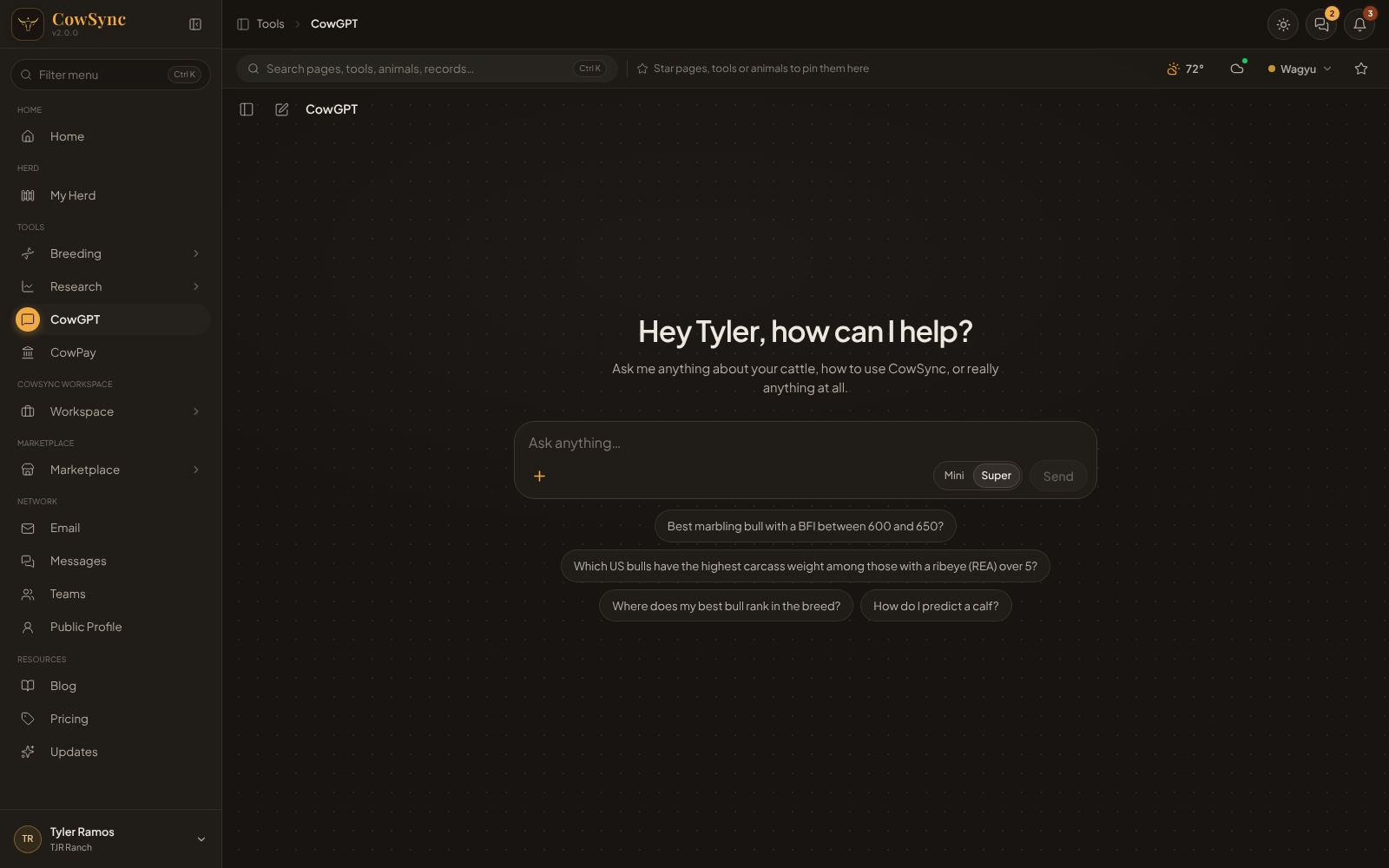
If CowGPT can't help, its reply may include Need more help? Contact our support team →. There's also a Need more help? Contact support button at the bottom of the chat list.
4. Talk to the CowSync team in Messages
You can chat with real people at CowSync, the same way you chat with your crew.
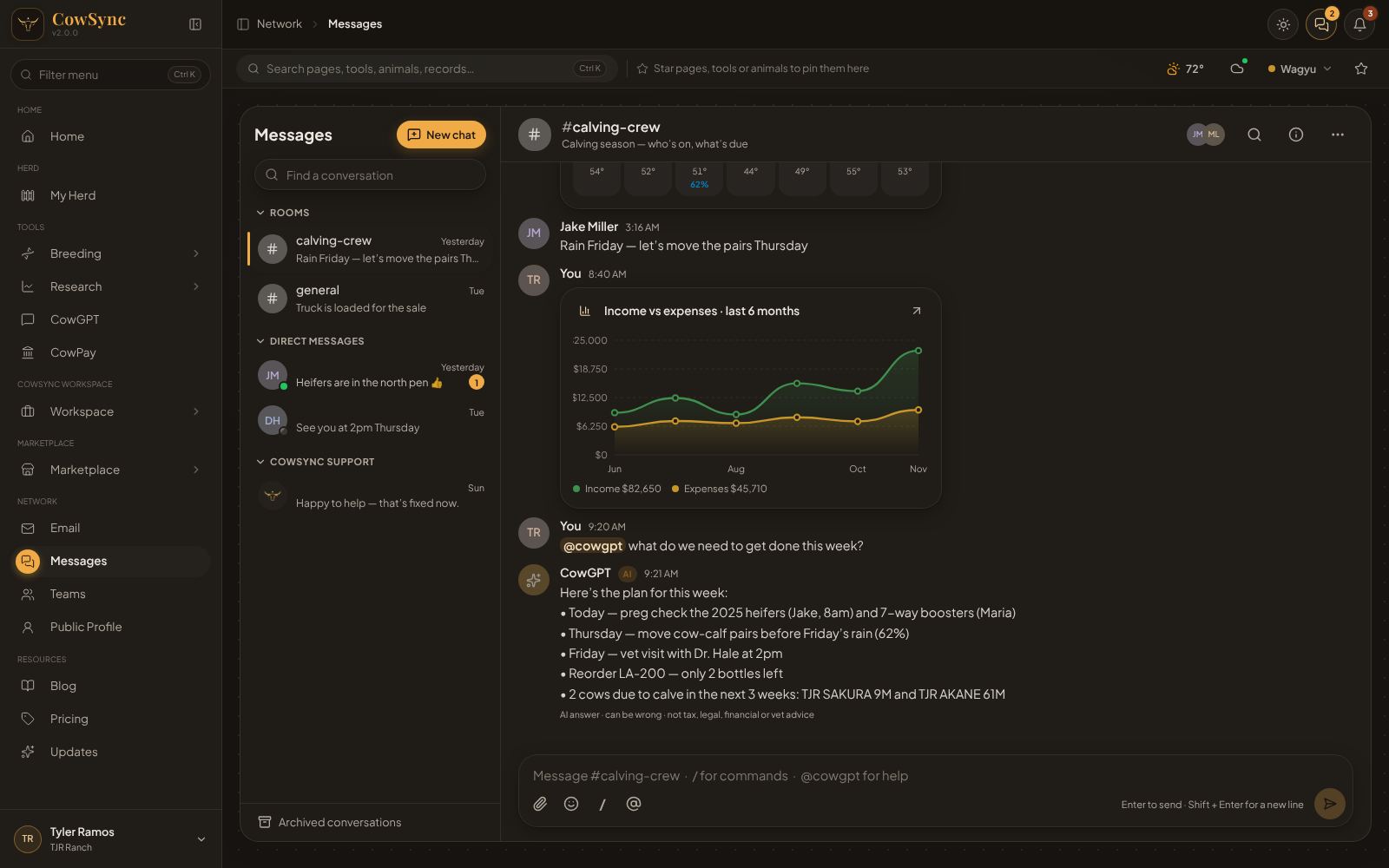
- Open Messages (the speech-bubble button at the top right, or Network → Messages).
- Click New chat, choose the CowSync tab, and click Open chat. (Or click the CowSync item under CowSync support in the chat list.)
- Type your question and send it. You can attach a screenshot.
The screen describes it as: "Questions, bugs, ideas, billing. A real person on our team answers… Only you and the CowSync team can see this chat." Replies show up in the same chat, and the Messages button shows a gold number when one arrives. See Messages.
5. Other ways to reach us
Every Contact Support or Need help? button in CowSync (on the Account, Teams, Import and CowGPT pages) opens the same support chat described above, so your whole conversation stays in one place.
Not signed in, or prefer email? Use the form on the Contact page (in the top menu of cowsync.com), or email direct@cowsync.com. Replies come to your email, usually within an hour.
6. The Updates page: what's new
CowSync changes over time. Updates (under Resources in the menu, or More in the top bar) lists each version and what it added. The top line tells you which version you're on, for example "What's new in CowSync · you're on v2.0.0".
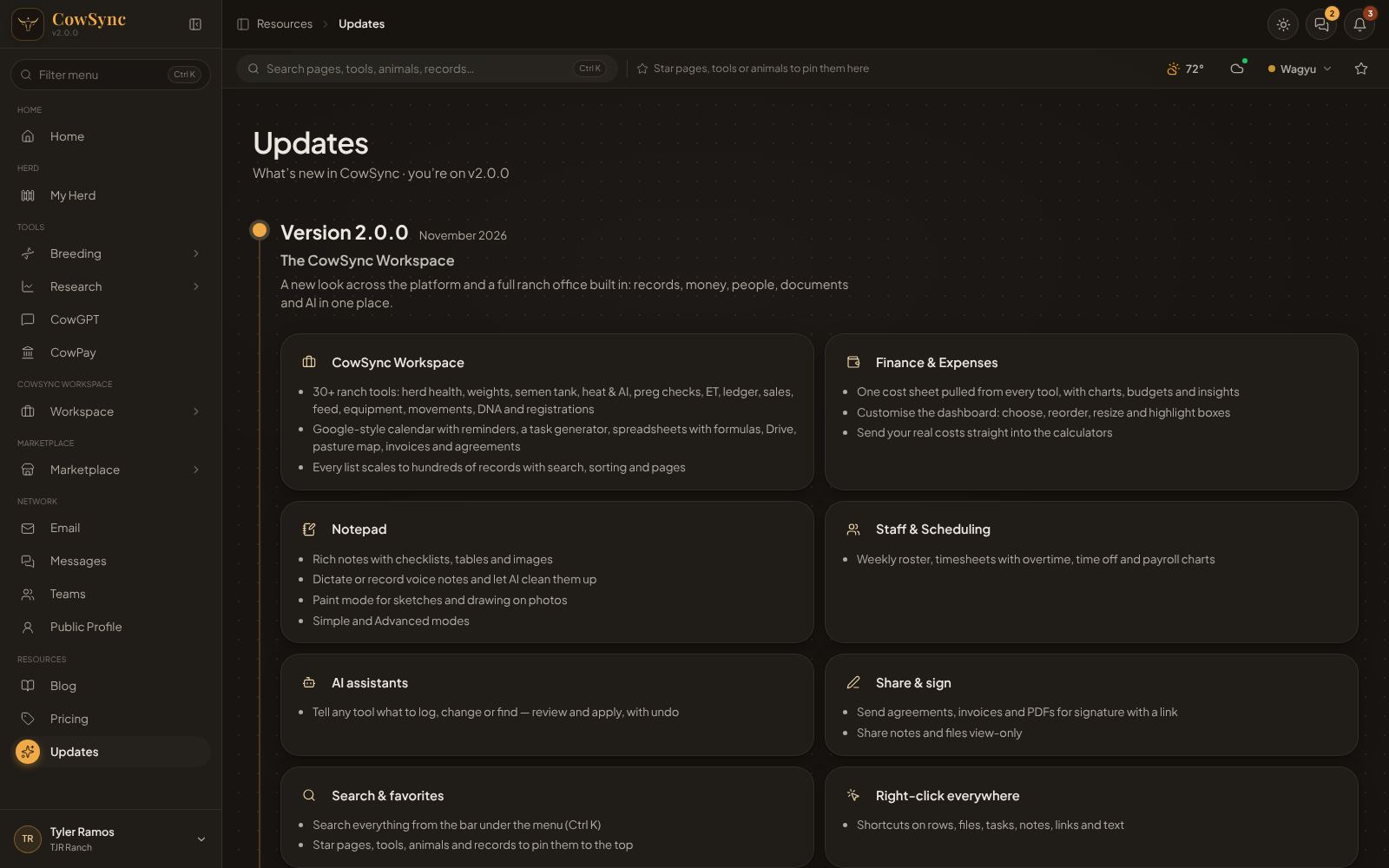
When there's a new update, a note can appear in your bell. You can turn that off in Notifications & automations → CowSync updates → Product updates in my bell. See Notifications & automations.
7. Tips that pop up
Now and then a small tip card with a light-bulb appears at the bottom right with a shortcut worth knowing. It goes away by itself. To stop them, open Account → Tips and turn off Show periodic tips.