CowSync Guide › Documents & records
Agreement templates
Fill in one of 11 Wagyu contracts, sign it on screen or send a signing link, then print or save it as a PDF.
Agreements gives you ready-made contracts written for Wagyu operations. You fill in the blanks, both sides sign on screen (with a finger, a mouse or a typed name) or by a link you send, and the signed copy stays on file. Print it or save it as a PDF any time. To open it, click the Agreement templates tile on the Workspace page.
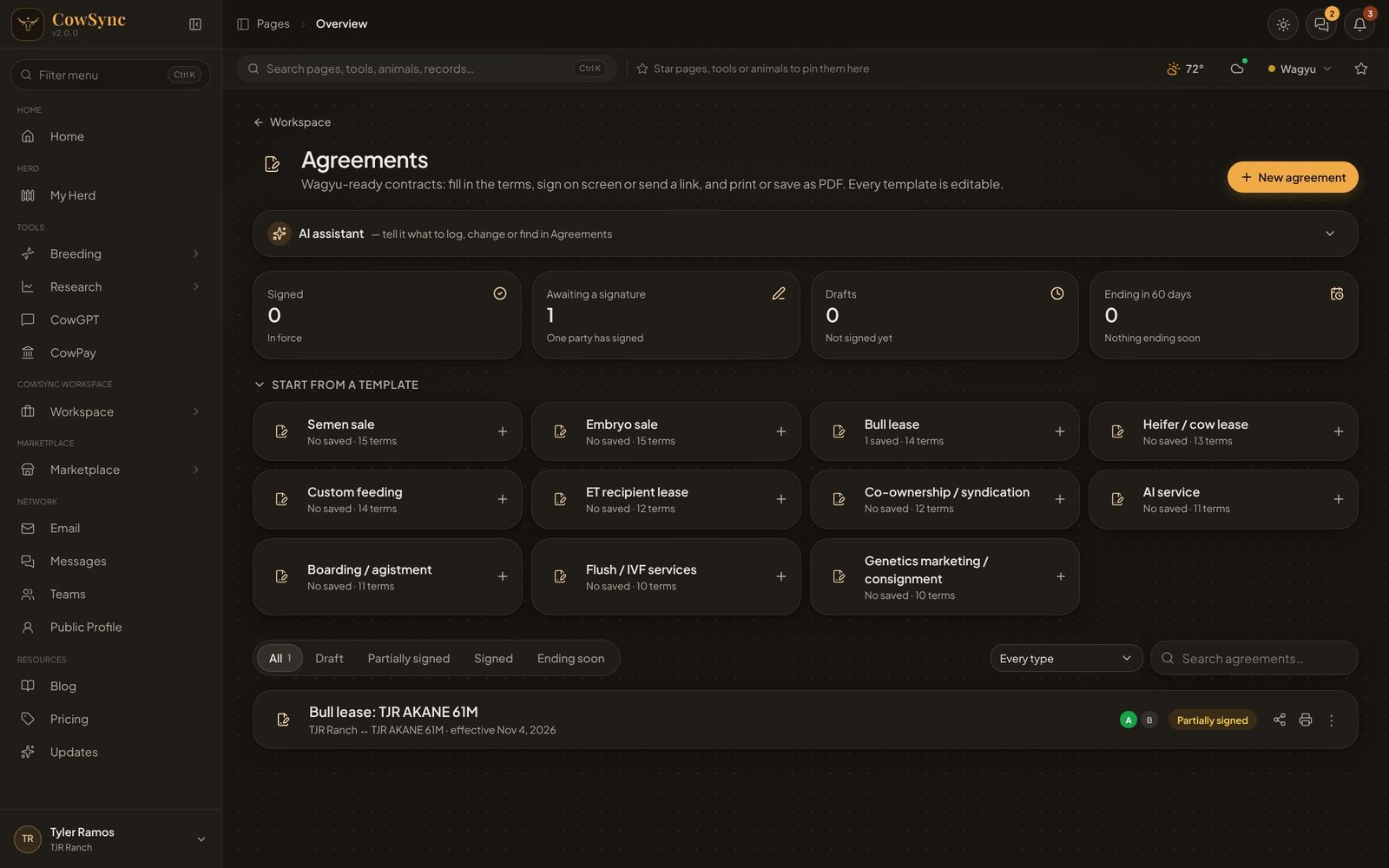
The templates
| Group | Templates |
|---|---|
| Sales | Semen sale, Embryo sale, Genetics marketing / consignment |
| Leases & boarding | Bull lease, Heifer / cow lease, ET recipient lease, Boarding / agistment, Custom feeding |
| Services | AI service, Flush / IVF services |
| Ownership | Co-ownership / syndication |
Each tile under Start from a template shows how many you have saved and how many terms it has. Click the Start from a template heading to fold the tiles away.
Make an agreement
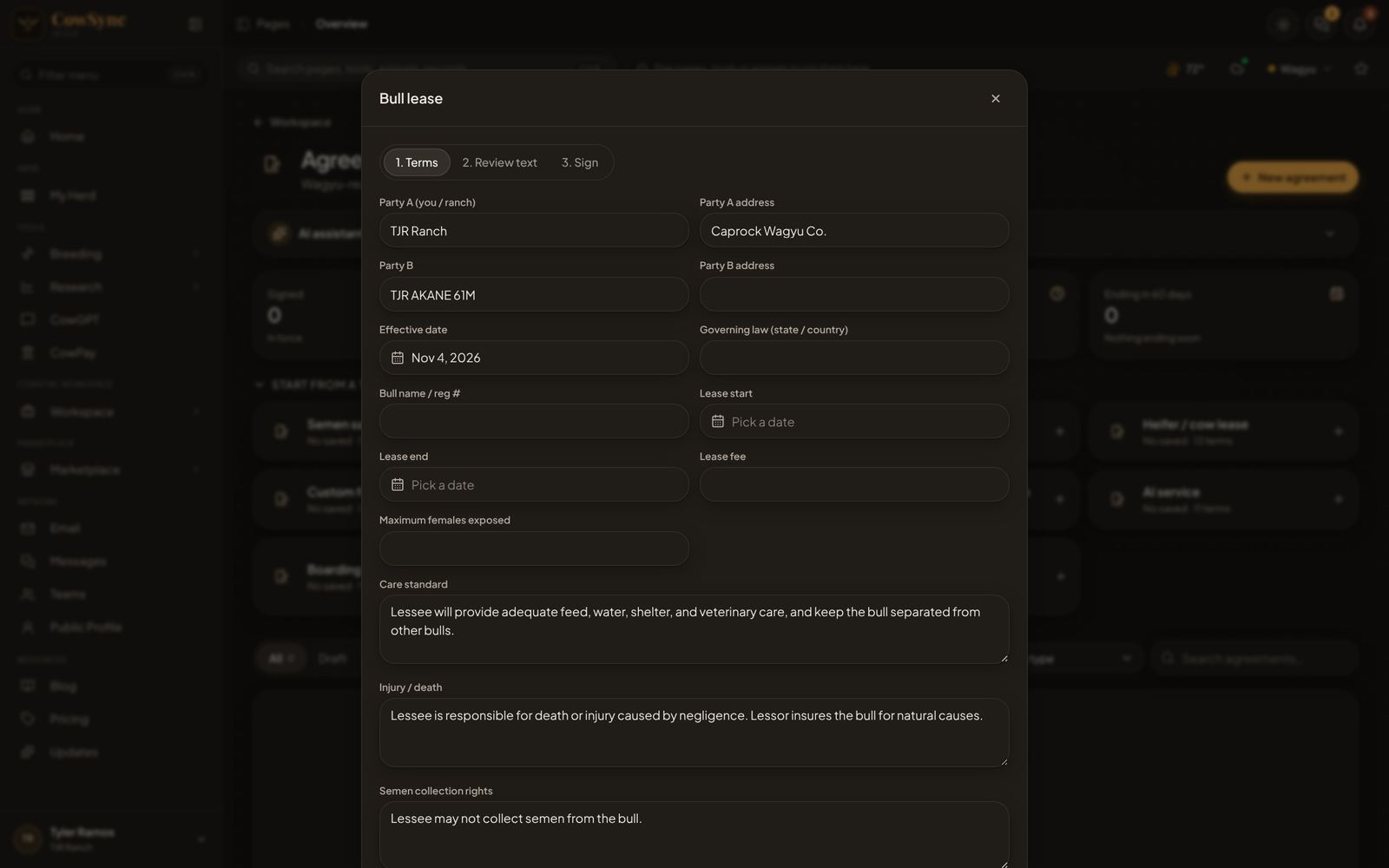
- Click a template tile. Or click New agreement and type in Find a template — lease, semen, embryo….
- 1. Terms: fill in Party A (you / ranch) and address, Party B and address, the Effective date and Governing law (state / country), then the template’s own terms. A bull lease, for example, asks for the bull, lease start and end, fee, maximum females exposed, care standard, injury / death and semen collection rights. Many boxes come with sensible wording already in them. Change it to suit.
- Click Next. 2. Review text shows the whole contract. Edit the wording on the left and see the finished contract on the right. Words inside double curly brackets, such as {{party_b}}, are blanks that fill in from step 1, so leave those as they are. Anything left empty prints as a line ________.
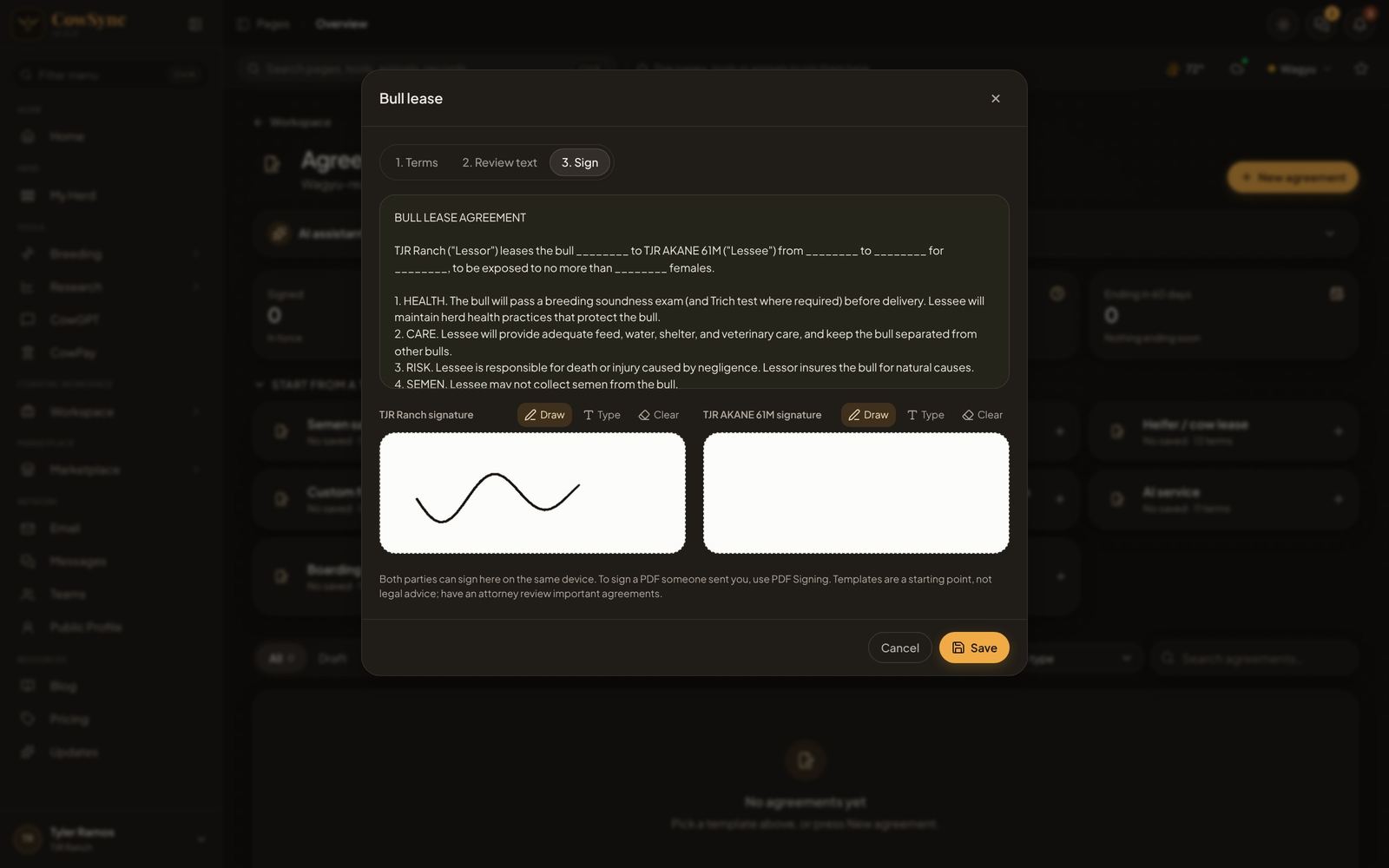
- Click Next. 3. Sign: each side signs in their own box. Choose Draw or Type. Clear starts again. The date is recorded when they sign.
- Click Save. You can save at any step and finish later.
Status and the list
CowSync sets the status for you: Draft (no signatures), Partially signed (one side has signed) or Signed (both have). The A and B circles on each row turn green as each side signs. A signed agreement whose end date has passed shows Ended.
The four cards along the top are Signed, Awaiting a signature, Drafts and Ending in 60 days. Click a card to show only those, and click it again to show everything. You can also use the tabs (All, Draft, Partially signed, Signed, Ending soon), the Every type box and Search agreements….
With nothing saved yet, the list reads No agreements yet.
Open, print and reuse
Click a row to open it. The panel shows the progress (Draft → Partially signed → Signed), both parties and their signatures, the Key terms and the full Agreement text. Its buttons are Edit / sign, Send to sign, Print, Use again and Delete.
Each row also has a share button, a print button and a ⋮ button. The ⋮ button (or a right-click) offers Open, Edit / sign, Share / send to sign, Print / PDF, Use again for someone else and Delete.
Send an agreement to be signed by link
- Click the share button on the row, or Send to sign in the open agreement.
- Choose Ask to sign. (View only makes a link they can read but not sign.)
- Pick Who signs with this link: Party B or Party A.
- Check the Signer name (optional), add a Message (optional) and pick when the Link expires.
- Click Create signing link. It is copied for you. Paste it, or use Email or Text.
The other person opens the link on any phone or computer, reads the agreement, types their full name, signs, ticks the box agreeing that the electronic signature counts, and clicks Sign document. Your copy changes to Partially signed or Signed by itself. Signatures are recorded with name, time and internet address.
The window’s Links for this item list shows each link as Active, Signed, Expired or Revoked. Click Revoke to shut a link off. Sending links needs a connection, so it does not work in Cloud mode.
Print or save as PDF
Print opens a clean page with the agreement and both signature lines, then your printer window. Choose “Save as PDF” there to keep a PDF. If nothing opens, CowSync asks you to allow pop-ups for the site in your browser. To keep the PDF in Drive, upload it with the category Agreement / contract.
Use again and your own wording
- Use again for someone else copies an agreement as a new draft with Party B and both signatures cleared. It is handy for the same lease with a new person.
- On 2. Review text, Save as my default for “Bull lease” (or whichever template) keeps your wording for every future agreement of that type. Those templates show Your version.