CowSync Guide › Operations
Equipment maintenance
List every machine and log each service, with costs and next-due dates that turn amber and red when service is coming up or late.
Equipment & Maintenance keeps a service history for everything from the tractor to the squeeze chute and the LN2 tank, and tells you what is due.
To open it, go to Workspace and click the Equipment maintenance tile. It works like the other Workspace record lists (see Records basics).
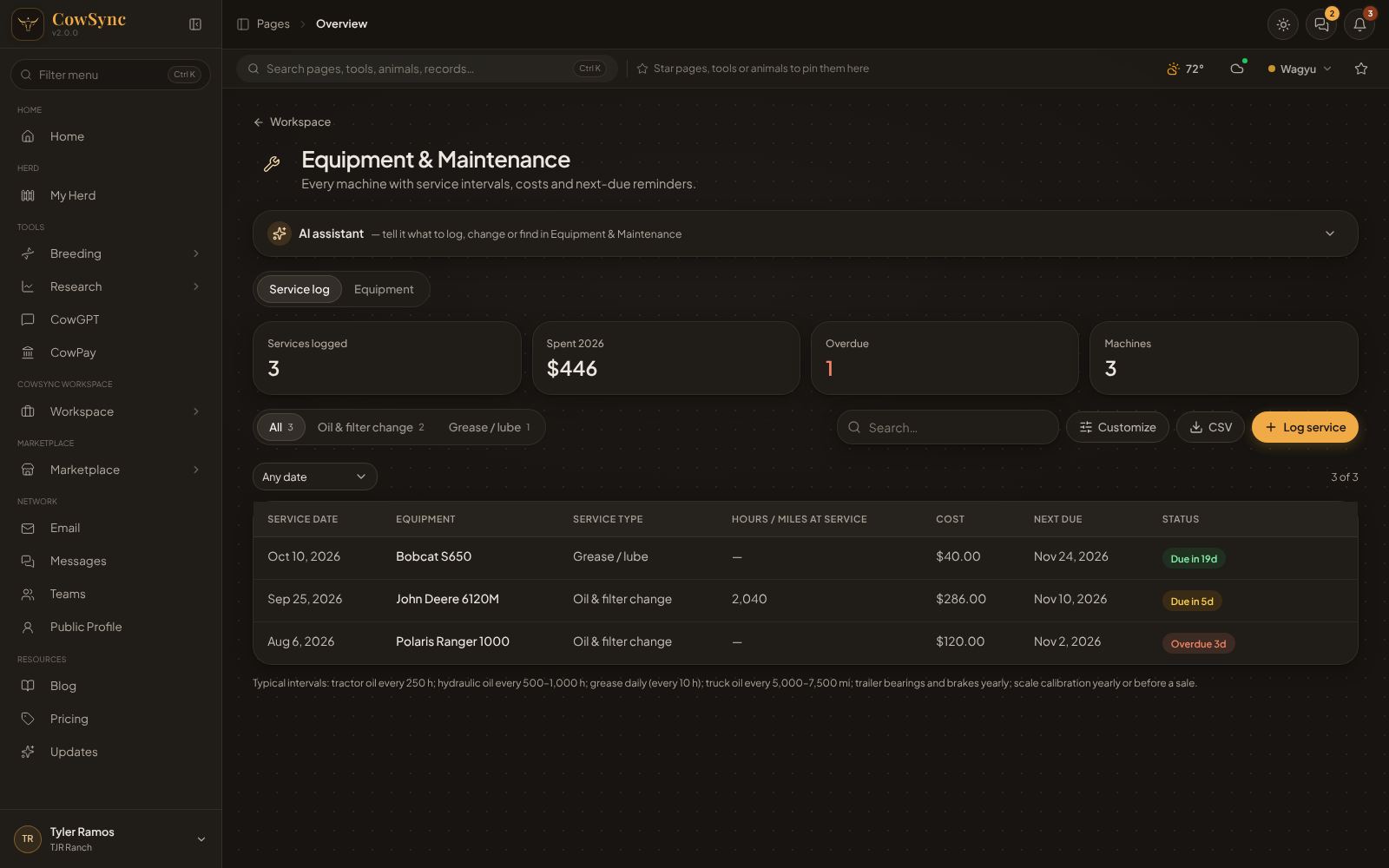
Two tabs
Under the AI assistant bar are Service log (the page opens here) and Equipment. Add your machines on Equipment first, then log services against them.
Equipment (your machines)
Click Add equipment. Fields: Name (required), Type (Tractor, Skid steer / loader, UTV / ATV, Pickup truck, Stock trailer, Semi / cattle pot, Feed mixer (TMR), Bale processor, Hay baler, Mower / conditioner, Rake / tedder, Squeeze chute / headgate, Scale, Handling system, Feed bunk / hay ring, Water trough / pump, LN2 tank, Ultrasound machine, Generator, Fence energizer), Make / model, Serial / VIN, Year, Purchase date, Purchase price, Current hours / miles, Location and Notes.
Columns: Name, Type, Make / model, Year, Current hours / miles, Purchase price. Tabs across the top filter by type.
Service log
Click Log service. Fields:
- Equipment and Service date (required).
- Service type (required): Oil & filter change, Grease / lube, Hydraulic service, Tires, Belt / chain, Battery, Inspection / DOT, Calibration (scale / chute), Repair, Overhaul, Winterization, LN2 tank vacuum check.
- Hours / miles at service, Cost, Vendor / mechanic, Parts used.
- Next due (a date) and Next due at hours / miles.
- Notes.
Columns: Service date, Equipment, Service type, Hours / miles at service, Cost, Next due, and Status. Status is worked out from Next due: green "Due in … d", amber when 14 days or less, red "Overdue … d".
The boxes on top show Services logged, Spent this year, Overdue (red when any) and Machines.
Log an oil change, step by step
- Open the Service log tab and click Log service.
- Type the machine name, pick the date and Oil & filter change.
- Enter the hour meter reading, cost and who did it.
- Set Next due (a date, such as three months out) and/or Next due at hours / miles (for example today's hours + 250). Only the date drives the Status column and reminders.
- Click Save.
Find, filter and export
- Tabs by type with counts (for example "Oil & filter change 2", "Grease / lube 1"). A type only shows once you have one.
- Search… looks in every field. A date filter offers Any date, Last 7, 30 or 90 days, or This year.
- Click a column heading to sort.
- Customize: change the choices in the drop-down lists, add your own fields (like "Filter part #"), and pick which columns show.
- CSV downloads what you see as a spreadsheet file.
Right-click menus
Right-click any row for Edit, Duplicate, Copy as text, Add to calendar… (or Remind me on the next-due date), Log $… as expense…, Save to a note, Add to ideas board… and Delete. A machine on the Equipment tab also has Schedule a service…, which opens a new service log entry for it.
How it connects
- Service costs count on the Finance dashboard as "Repairs & maintenance". Purchase prices can be counted too: switch on "Equipment purchases" under Map expenses.
- The AI assistant bar: "Log an oil change on the John Deere 6120M today, $180" or "What equipment is overdue for service?"
- The Task generator's Winter prep checklist includes "Service tractors and feeders".