CowSync Guide › Money
Sale & auction planner
Plan each sale and every lot: reserves, EPDs, genetic status, buyers, prices and settlement.
The Sale & Auction Planner keeps track of each sale you hold or enter, and every lot in it: reserves, EPDs, genetic status, buyers, prices and settlement.
To open it, go to Workspace and click the Sale & auction planner tile. It works like the other Workspace record lists (see Records basics).
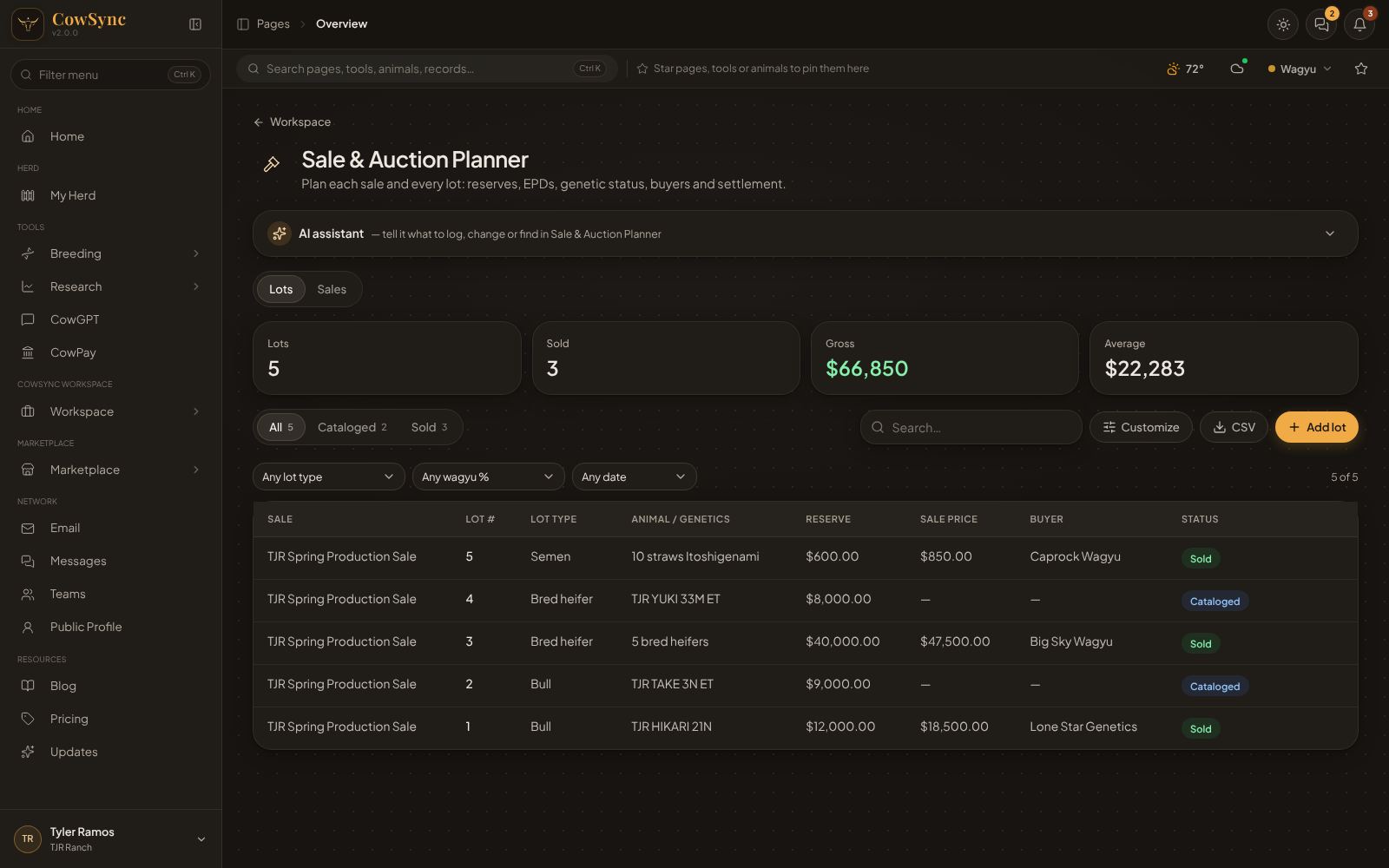
Two tabs: Lots and Sales
Just under the AI assistant bar are two tabs. Sales holds one entry per sale day or event. Lots holds one entry per lot. Most people add the sale first, then its lots.
Add a sale
- Click the Sales tab, then Add sale.
- Fill in Sale name and Sale date (both required).
- Sale type: Production sale, Online auction (timed), Simulcast, Private treaty, Consignment sale, Breed association / elite sale, Video auction, Saleyard or Tender.
- Venue / platform: On-ranch, DVAuction, Superior Livestock, LiveAuctions.tv, Cattle USA, SmartAuctions, AuctionsPlus, Elite Livestock Auctions or Other.
- Optional: Sale manager, Catalog deadline, Commission %, Entry fee per lot, Buyer's premium %, Marketing budget and Notes.
- Status: Planning, Catalog, Live or Closed.
- Click Save.
Columns: Date, Sale name, Sale type, Venue / platform, Commission, Catalog deadline and Status.
Add a lot
- Click the Lots tab, then Add lot.
- Fill in Sale (type the sale name) and Lot # (both required).
- Lot type: Bull, Open heifer, Bred heifer, Cow, Cow-calf pair, Pregnant recip, Embryo package, Semen package, Flush / donor choice, Steer / feeder group, or Interest in animal.
- Animal / genetics (start typing to pick from your herd), Registration #, Wagyu %, Sire × dam and DOB.
- Key EPDs / EBVs (e.g. Marb +2.1, CW +45), Genetic conditions (e.g. 5-panel Free) and Preg status / due.
- Reserve and Opening bid. After the sale, fill in Sale price and Buyer.
- Status: Planned, Cataloged, Sold, Passed, No sale or Settled.
- Optional Photo / video link and Notes, then click Save.
Columns: Sale, Lot #, Lot type, Animal / genetics, Reserve, Sale price, Buyer and Status. Status labels are colored: green for Sold and Settled, blue for Cataloged, red for Passed and No sale.
The boxes on top show Lots, Sold, Gross (total of sold and settled lots) and Average price per sold lot.
Find lots
- Status tabs (All, Cataloged, Sold and so on) with counts. A status only shows once at least one lot has it.
- Search… looks in every field.
- The filter boxes: Any lot type, Any wagyu % and Any date (Last 7, 30 or 90 days, This year). Clear filters resets them. The count on the right (e.g. "5 of 5") shows how many match.
- Click a column heading to sort; click again to reverse.
Customize and export
- Customize: change the choices in the drop-down lists (one per line), add your own fields (for example "Pen #" or "Consignor"), and pick which columns show. Click Save.
- CSV: downloads the rows you are looking at as a spreadsheet file that opens in Excel or Google Sheets. Handy for a sale catalog draft or your sale manager.
Right-click a lot
Right-click any row for Edit, Duplicate, Copy as text and Delete, plus:
- Book transport for this lot…: starts a movement and transport record.
- Transfer registration (60 d): adds a to-do to transfer the registration to the buyer (shows once a buyer is filled in).
- Log $… as income…, Add to calendar…, Save to a note, Everything about the animal, and Add to ideas board….
After the sale
- For each lot, fill in Sale price and Buyer and set the status to Sold.
- Bill the buyer with an invoice or bill of sale.
- Send a CowPay pay link, or record the payment when it arrives.
- Set the lot to Settled once paid.
Lots with a sale price show as income on the Finance & expenses dashboard under "Sale lots (sold)".