CowSync Guide › Team & communication
Sharing links and sending things to sign
Send someone a web link to view a note, file, invoice or agreement, or to sign it on their own phone, and turn the link off when you're done.
You can send a buyer, a vet, a neighbor or your accountant a link to something in your Workspace. They open it on any phone or computer. They don't need a CowSync account. There are two kinds of link:
- View only: they can read it, print it or download it.
- Ask to sign: they can read it and sign it on screen. Their signature comes back to you.
What you can share
| Item | Where to find Share | View only | Ask to sign |
|---|---|---|---|
| Agreements | Agreements: the share icon on the row, Send to sign in the panel, or right-click → Share / send to sign | Yes | Yes, as Party A or Party B |
| Invoices & bills of sale | Invoices: the share icon on the row, or Share / sign in the panel | Yes | Yes, as buyer or seller |
| PDF files | Drive: the file's ⋮ menu or right-click → Send for signature… | Yes | Yes |
| Other files | Drive: ⋮ menu or right-click → Share link… | Yes | No |
| Notes | Notepad: right-click a note in the list → Share link…, or the More (⋯) button in a note's toolbar (Advanced mode) | Yes | No |
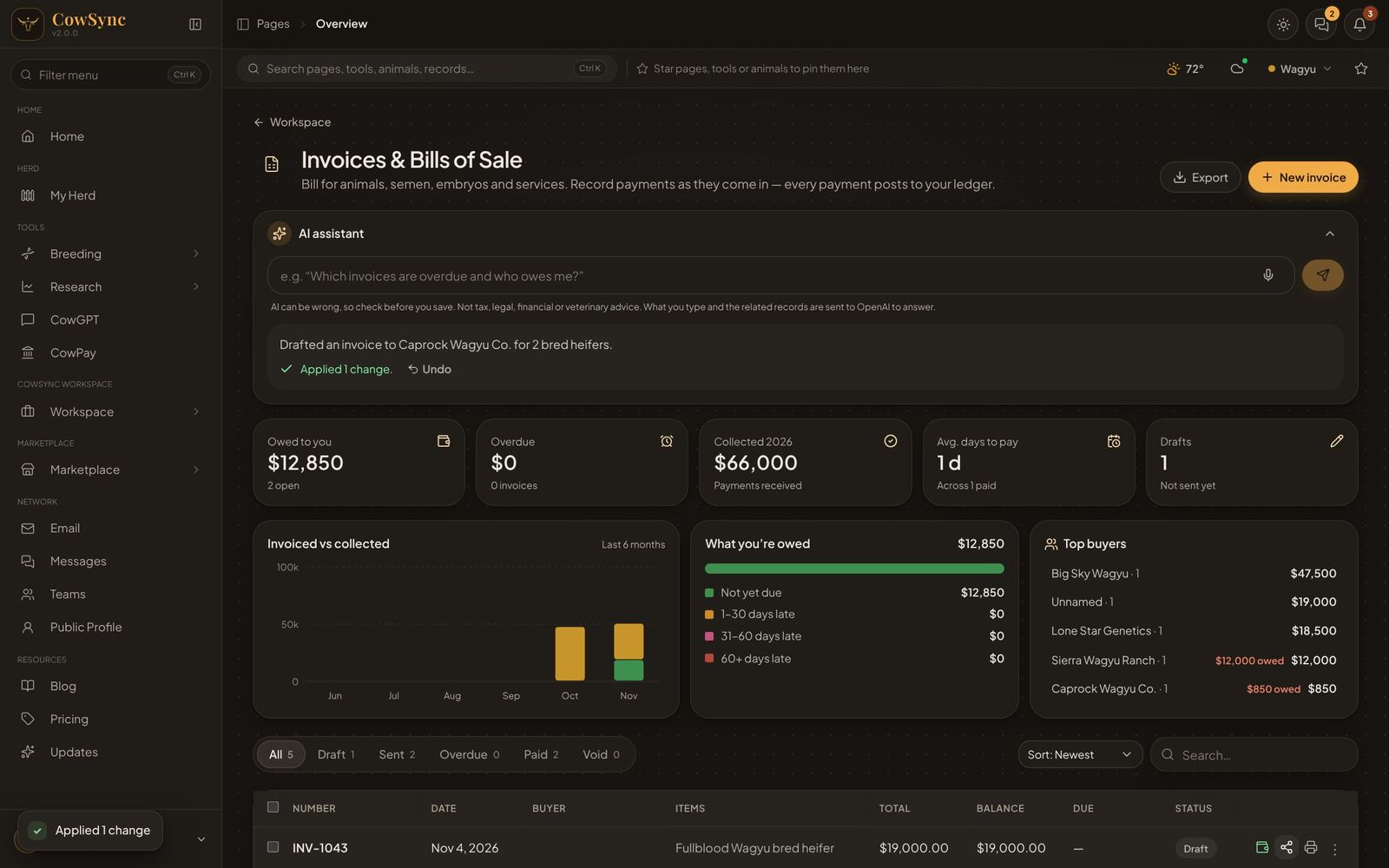
Send a link, step by step
- Click the share button for the item (see the table). A window opens titled Share "…".
- If the item can be signed, choose Ask to sign or View only at the top.
- For signing, pick Who signs with this link (for example the buyer, or Party B). Type a Signer name (optional). It fills in their name for them.
- Type a Message (optional), such as "Hi — here's the agreement for the heifers we discussed."
- Choose when the Link expires: 1 day, 7 days, 30 days (the default), 90 days or 1 year.
- Click Create signing link (or Create view link).
- The link is copied for you, and a box reads "Link ready — copied to your clipboard". Paste it anywhere, or click Email or Text to open a ready-made message on your computer or phone.
Need two people to sign the same agreement? Make one signing link for Party A and a second one for Party B.
What the other person sees
The link opens a clean page with the CowSync name and "shared by" your name at the top. Your message shows first, then the item:
- Agreement: the full agreement text with your details filled in, and the signature lines for both parties.
- Invoice: the invoice number, date, status, From and Bill to, the line items and the total, plus any guarantee and disclosures. If there's a balance and online payments are on, a box shows the Amount due and a Pay $… button (bank transfer or card, through Stripe). A paid invoice says "Paid in full — thank you". See CowPay.
- Note: the note's title and text, with checklists, tables and pictures.
- File: PDFs and photos show right on the page. Other files show a download button. A Download button sits at the top.
Agreements, invoices and notes have a Print button at the top.
How they sign
- At the bottom of a signing link is a gold-edged box, for example Sign as buyer or Sign this PDF.
- They type Your full name, and an email if they want (Email (for your records)).
- They draw their signature with a finger or mouse, or switch to typing it.
- They tick "I agree that my electronic signature is the legal equivalent of my handwritten signature on this document."
- They click Sign document. The page says "Signed. Thank you — the sender has been updated."
For a PDF, the signature, a line and "Signed by [name] · [date and time] · via CowSync" are stamped at the bottom right of the last page, and the signer gets a signed copy downloaded to their device. Once a link has been signed, opening it again says "This document has already been signed."
Keep track of your links
Open the share window for the same item again. The right side, Links for this item, lists every link you made for it:
- A pen icon for a Signing link (with the signer's name) or an eye for a View link.
- A tag: Active, Signed, Expired or Revoked.
- How many times it has been viewed, when you made it, and when it expires or who signed it and when.
- Copy to copy an active link again.
On an agreement or invoice, the signature also shows on your own copy, so the agreement moves to Partially signed or Signed.
Stop sharing
Click Revoke next to the link. It stops working straight away. Anyone who opens it afterwards gets a page saying the link is not available. Links also stop by themselves on their expiry date.