CowSync Guide › Getting started
The Home page and where to start each day
What you see on the CowSync Home page once you are signed in, and which screens work as your everyday dashboard.
Home is the first item in the menu. It opens the CowSync front page, the same page visitors see before they sign up. Once you are signed in it looks a little different, and it gives you a quick way into the program. Your real day-to-day dashboards are My Herd and the Workspace overview. This page explains all three.
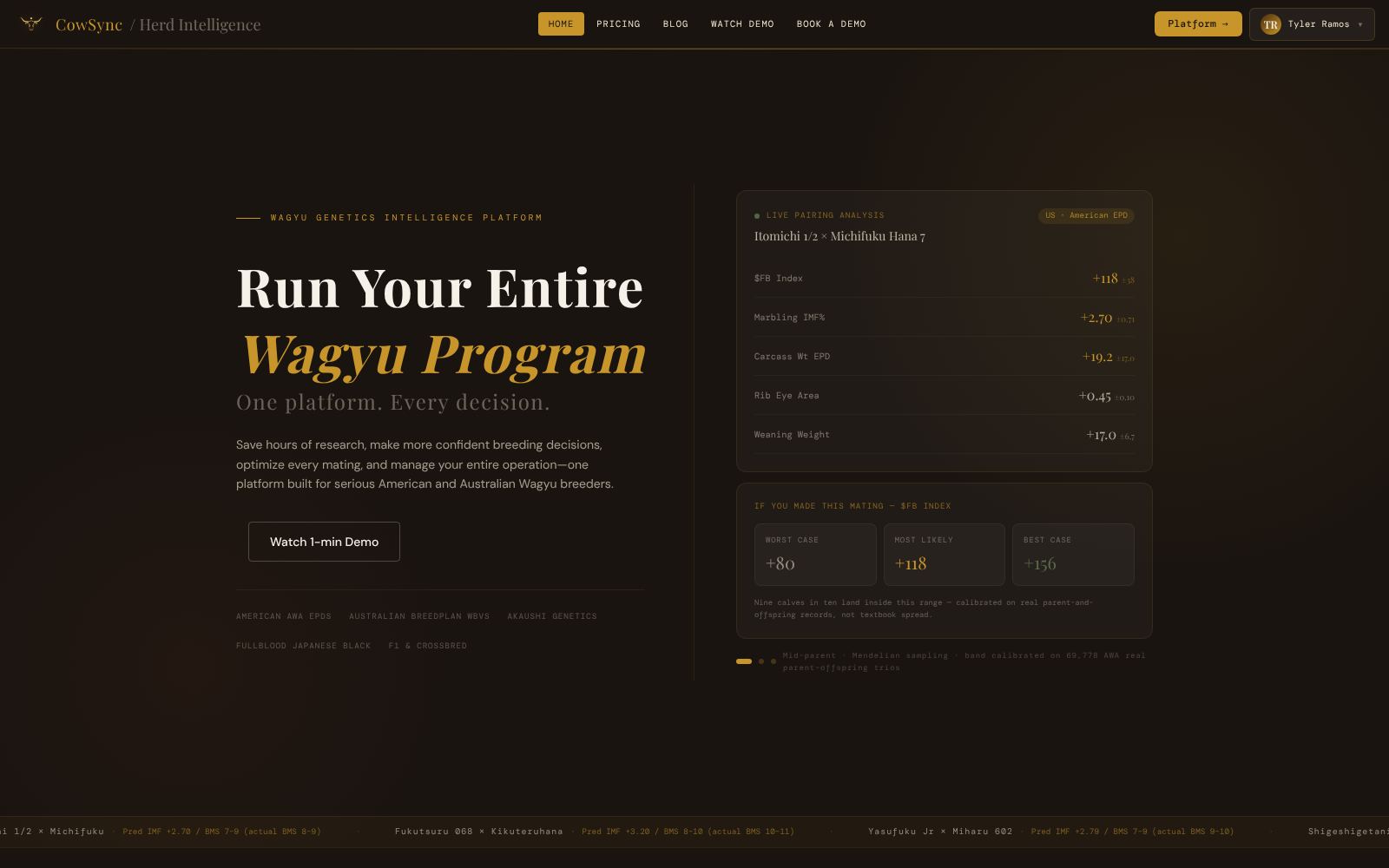
What's on the Home page
The top bar
The Home page keeps its own dark top bar, with only a few links: Home, Pricing, Blog, Watch Demo and Book a Demo. The full CowSync menu, the search box and the favorites strip are not shown here. You get them back as soon as you go into the program.
- Platform → (gold button, top right): takes you to My Herd.
- Your name (with your picture or initials): opens your account menu. The first choice is Go to My Herd. The rest is the usual account menu, such as Account & Billing and Sign out.
- On a phone or narrow screen these sit behind the three-line menu button at the top right. The menu there has a gold Platform → button too.
If you are not signed in, the gold button reads Enter Platform instead. Click it to sign in. See Getting started.
The rest of the page
Scrolling down, the Home page tells newcomers what CowSync does. You don't need any of it for daily work, but here is what each part is:
- Watch 1-min Demo: a short video of the program. Book a Call shows next to it until you have booked a demo.
- The rotating cards on the right are sample pairing predictions, not your animals.
- A band of numbers and partner logos.
- Platform Capabilities: small moving previews of CowGPT, My Herd, the Predictor, the Mating Planner, the Simulator, the Leaderboard, the Auction Analyzer, Search and Teams. Click one to read more about it. The button in that panel opens the real tool.
- An Enterprise panel with a Contact Sales → button, for very large operations.
- Questions Ranchers Ask: a few short questions and answers. Click a question to open it.
- The footer: links to the main tools, the support email direct@cowsync.com, and the Privacy Policy and Terms of Service.
Your everyday dashboards
Most ranchers skip Home after the first visit and go straight to one of these two screens. Star the one you like with the star at the far right of the search strip, so it is one click away. See Navigation & search.
My Herd: your animals at a glance
Platform → lands you here. Across the top are stat cards, such as Total Animals, Males, Females, average marbling or IMF, and Diversity. Under them is every animal you own, as cards or a table. Click Customize to choose which stat cards show. See My Herd.
Workspace overview: today on the ranch
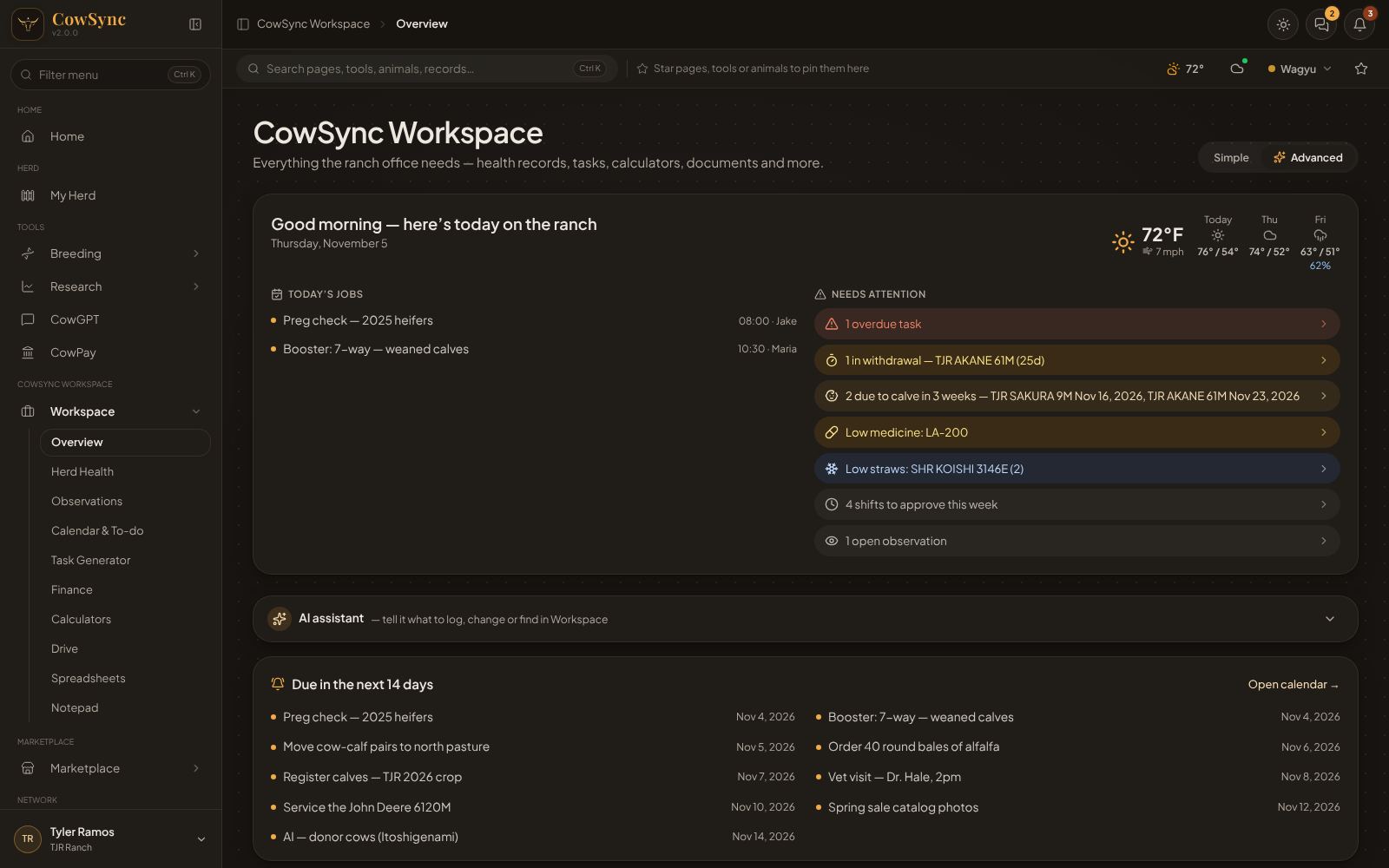
Open Workspace → Overview in the menu. The top card greets you ("Good morning — here's today on the ranch") and shows:
- the weather and a three-day forecast,
- Today's jobs from your calendar, with the time and who is assigned,
- Needs attention: colored bars for overdue tasks, animals in withdrawal, cows due to calve, low medicine, low straws, feed running low, overdue invoices, shifts to approve and open observations. Click a bar to go and deal with it.
Further down are Due in the next 14 days, your favorite tools and a tile for every Workspace tool. See Workspace home.
A simple daily routine
- Open Workspace → Overview. Read Today's jobs and Needs attention.
- Click any red or amber bar and take care of it.
- Glance at the bell at the top right for anything new. See Notifications & automations.
- Log the day's work in the right tool, or type it into the AI assistant bar. See AI assistant.