CowSync Guide › Team & communication
Messages
Chat with your crew in rooms and direct messages, share files, use slash commands like /weather and /chart, and ask @cowgpt for help right in the chat.
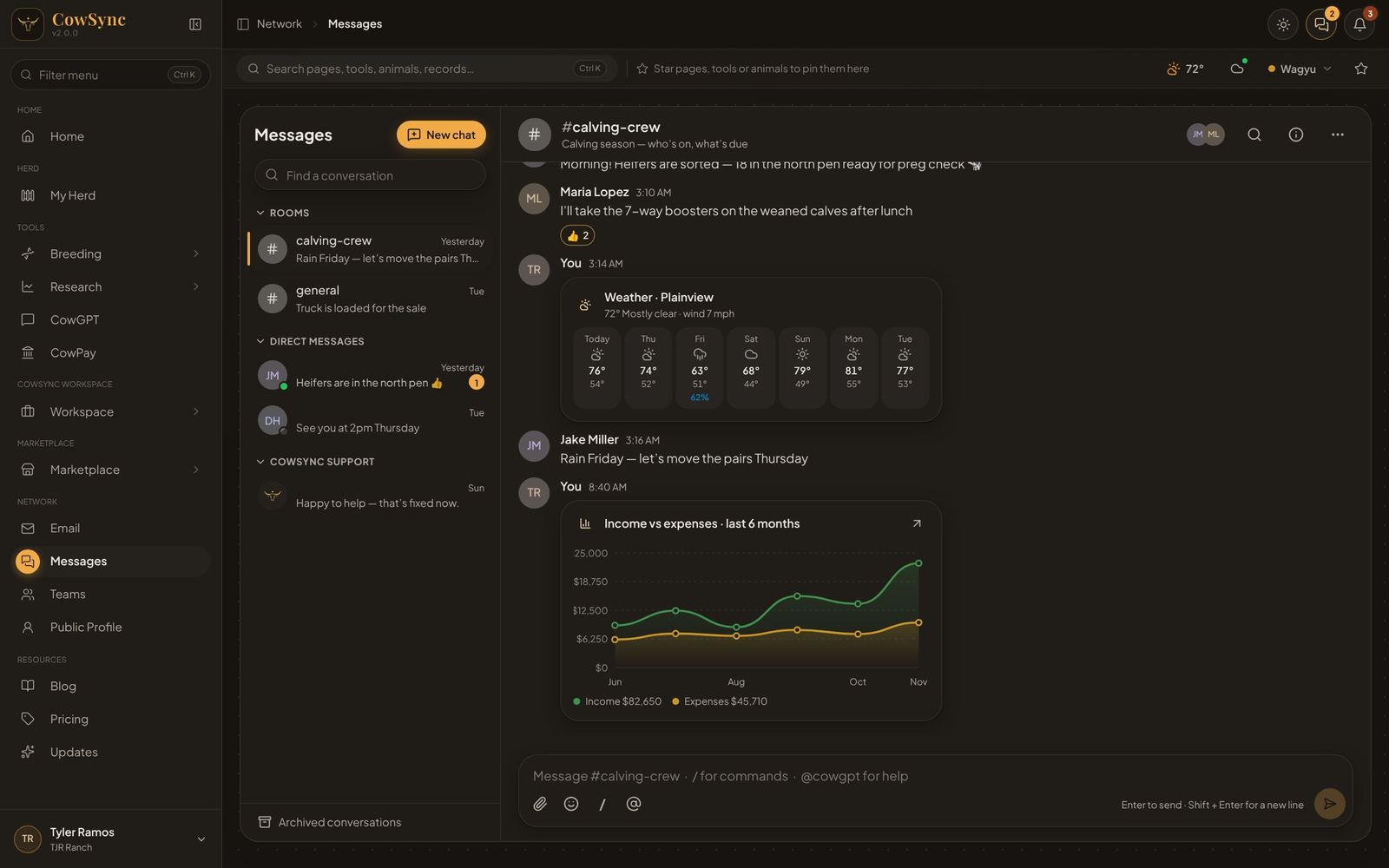
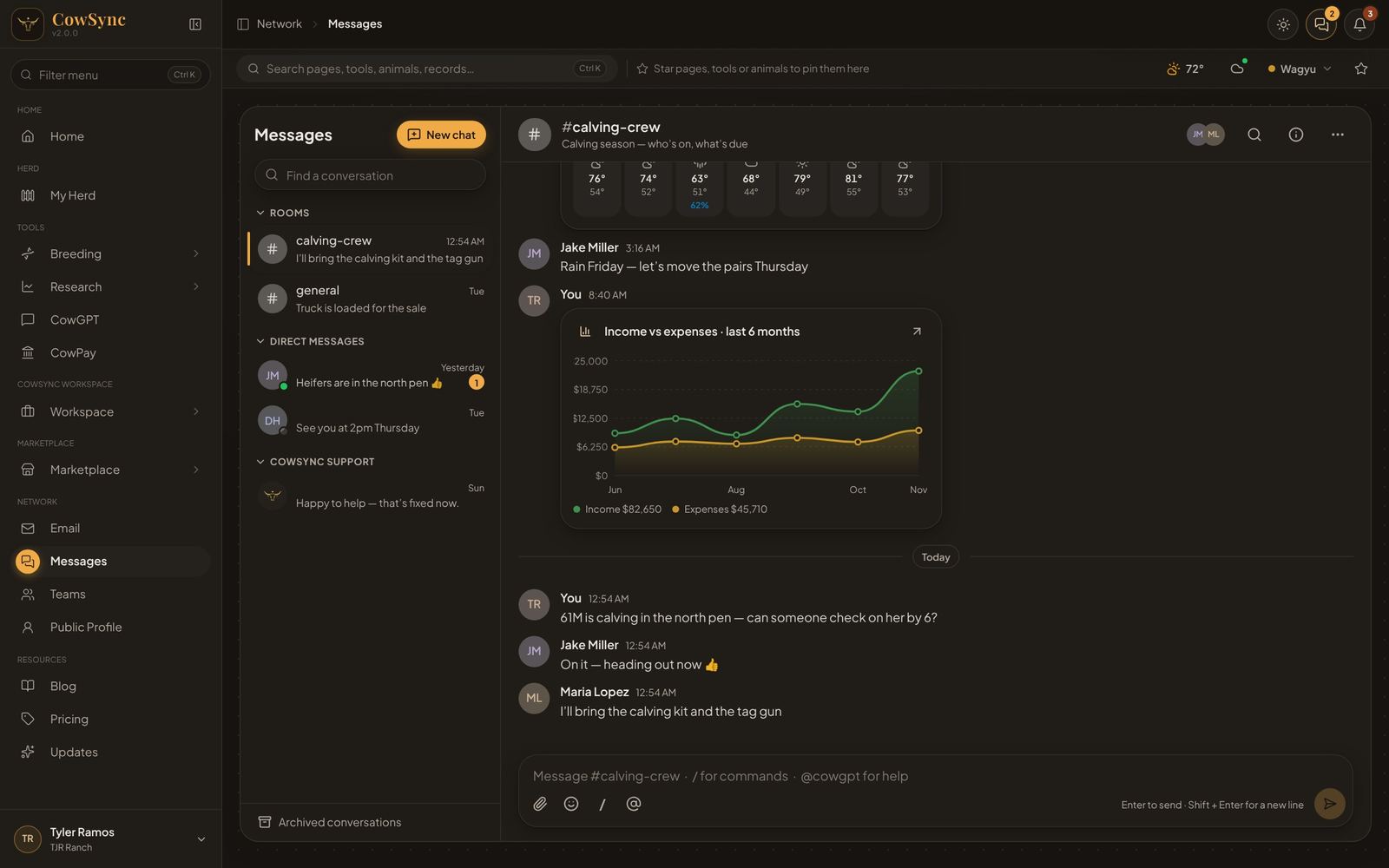
Messages is the ranch group chat. Open it from the menu under Network, or with the chat bubble button at the top right of every page. Talk with your team in rooms (for a job or a topic, like #calving-crew), in direct messages with one or more people, or with the CowSync team in CowSync support. A gold number on the chat bubble shows how many messages you have not read.
The conversation list
On the left are your conversations, grouped as Rooms, Direct messages and CowSync support. Click a heading to fold it. Unread conversations are bold with a gold count, a green dot means the person is online, and a bell with a line through it means you muted it. Use Find a conversation to search.
Right-click a conversation for Open, Mark as read, Details (Room details & members for a room), Mute alerts, Archive, and for rooms Leave room and Delete room (only the person who made it). Archived chats are under Archived conversations at the bottom. They come back by themselves when someone writes.
Start a chat or make a room
- Click New chat.
- Direct message: search your teammates and tick one person, or several for a group chat. Click Start chat (or Start group chat).
- New room: give it a Room name (such as calving-season or feed-orders), an optional What’s it for? line and the Team. Choose Everyone on the team or Pick people, then Create room.
- CowSync: opens your private support chat. A real person on our team answers, usually within a few hours on weekdays.
Writing a message
- Type in the box at the bottom. Enter sends, and Shift + Enter starts a new line. Unsent text is kept if you leave the chat.
- If a message does not go through, it says Didn’t send with Try again and Remove.
- The paperclip attaches files (up to 20 MB each). You can also paste a photo straight into the box. Pictures show in the chat. Other files show as a card you click to open or download.
- The smiley adds an emoji. The @ button starts a mention.
- The / button opens the commands list.
Mentions
Type @ and the first letters of a name, then pick the person (Enter or Tab picks the top one). Mentions show highlighted in gold. @cowgpt is always on the list (see below).
Slash commands
Type / at the start of the message, pick a command with the arrow keys and press Enter.
| Command | What it posts |
|---|---|
| /weather | The 7-day ranch forecast card. Set your ranch location with the weather button at the top first. |
| /animal name or reg # | An animal card from your herd with its key numbers. |
| /chart | Income vs expenses for the last 6 months. /chart spend shows where the money went this year. |
| /spend | Ranch card spending this period. |
| /card cardholder or card name | One ranch card and how much is spent. |
| /invoice invoice # or buyer | An invoice and where it stands. |
| /task what needs doing | Adds a to-do for today to the calendar and posts it. |
| /poll Question | choice | choice | A vote. Example: /poll Where do we move the heifers? | North pasture | Creek lot |
| /cowgpt your question | Asks CowGPT. |
| /shrug | Adds ¯\_(ツ)_/¯ |
| /help | Shows all commands. |
/spend and /card use your ranch cards from CowPay. /chart reads your income and expenses.
Ask @cowgpt in the chat
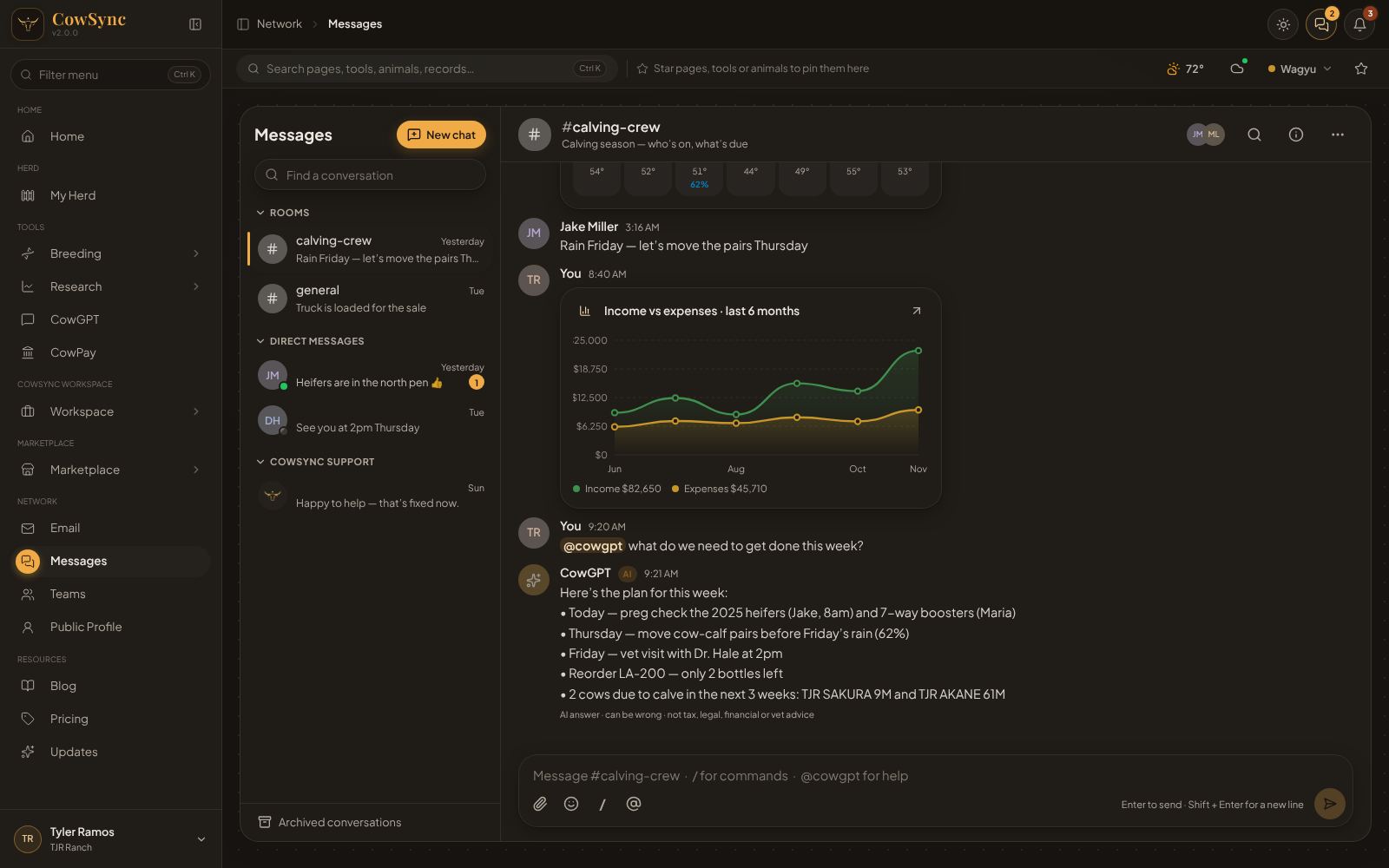
Start a message with @cowgpt and ask, for example “@cowgpt what do we need to get done this week?”. CowGPT reads the recent messages and your ranch records, then answers in the chat for everyone to see.
Reactions, editing and deleting
Hover over a message for quick reactions (👍 ❤️ 😂), the smiley for more, the pencil to edit your own message, and the trash can to delete your own. Edited messages say “(edited)”. In direct messages and group chats a small “Seen” (or “Seen by …”) appears under your last message once it has been read. You will also see “… is typing”.
Search and details
The magnifier at the top searches this conversation. The i button opens Details: for a room you can change the Room name and What it’s for, see Members and Add people, and see the Files shared in the chat. The ⋯ menu has Mute alerts, Archive, Leave room and Delete room.