CowSync Guide › Team & communication
Teams and Workspace team access
Invite people to your ranch, choose their role and permissions, switch between teams, and set what each person can see or change in the Workspace.
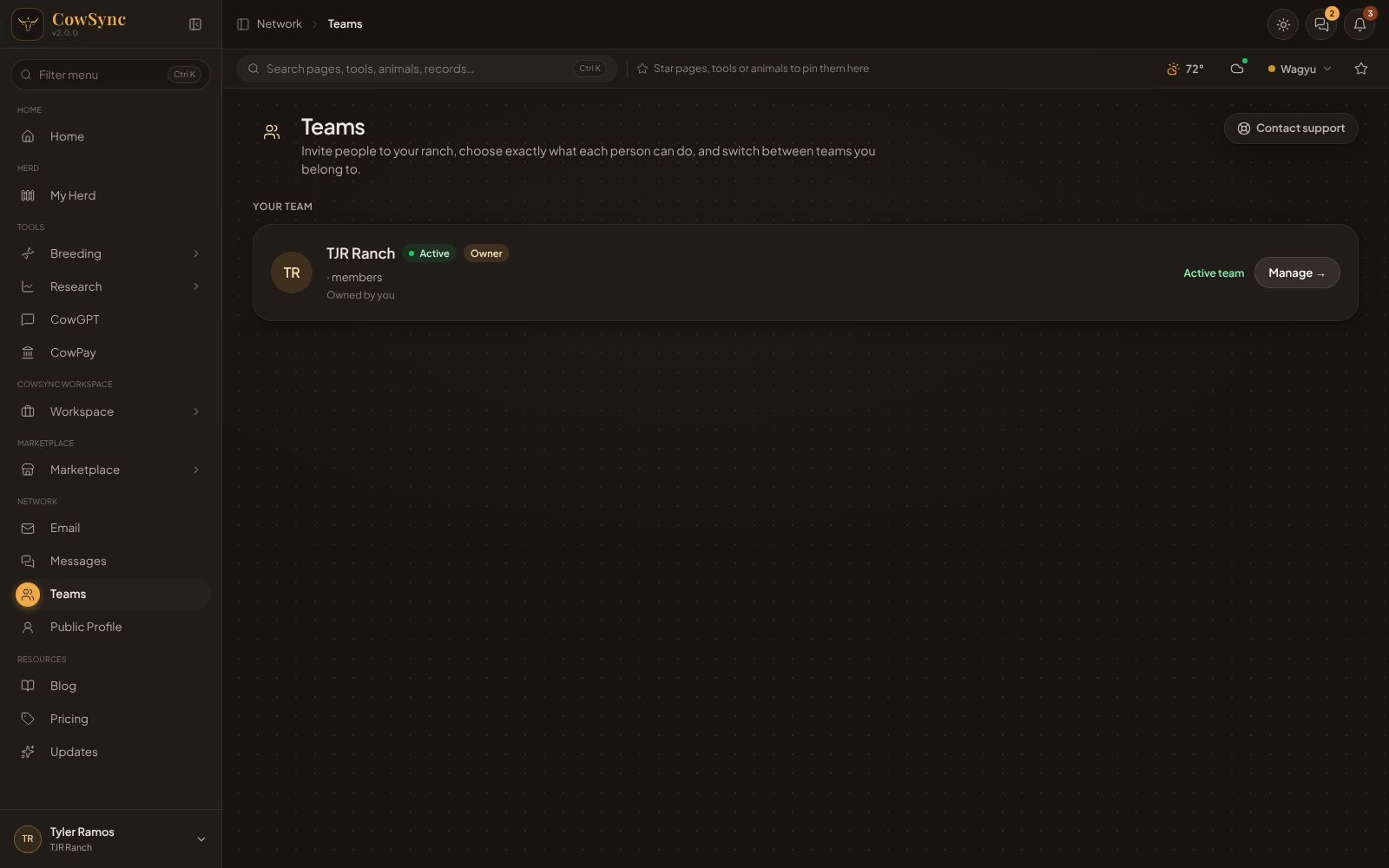
A team is your ranch in CowSync. Everyone on the team shares its herd and Workspace. The Teams page is where you invite people, choose what each one may do, and switch between ranches if you belong to more than one. Open Teams from the menu under Network. Every account gets one team of its own, marked Home.
Roles
| Role | What they can do |
|---|---|
| Owner | Everything, including the plan, renaming the team, its logo, roles and handing ownership to someone else. There is one owner per team. |
| Admin | Can manage members, and has full access to the Workspace. |
| Member | Gets only the permissions you choose. |
The team screen
Click Manage → on your team card. At the top are four cards: Members (with how many are active now), Pending invites, Seats (used out of your plan’s limit) and Plan. The owner gets a Manage plan & seats → link there.
Below are two tabs, Members and Pending. Type in Find a member… when the list gets long. A green dot on someone’s picture means they are using CowSync right now. Each row also says when they were last seen and how many permissions they have, for example “12/24 permissions”.
Invite someone
- Under Invite someone by email, type their email address.
- Choose Member or Admin.
- Click Send invite. You will see “Invite sent to …”, and the invite shows under Pending with an Invited tag. Use Resend or Cancel there.
When someone invites you, it shows at the top of the page under Invitations to join, with Accept and Decline.
Permissions for a member
These decide what a member can do with the herd and the breeding tools.
- Click Permissions on the member’s row.
- Click each permission to turn it on (gold tick) or off. Use all or none beside a group, or Grant all / Clear all for everything. The count shows, for example, “12/24 granted”.
- Click Save permissions, or Close to leave without saving.
- Herd: View herd, Add animals, Edit animals, Delete animals, Import from registries, Manage labels.
- Analysis: Run predictions, Run simulator, Rank sires for a dam, Optimal pairing, Mating planner, Auction analysis.
- Assistant: Use CowGPT.
- Mating plans: View plans, Create & edit plans, Delete plans.
- Contacts & reports: Manage contacts, Email reports, View sent reports.
- Team admin: Invite members, Remove members, Change member roles, Manage permissions, Team settings.
A member with every permission is shown as “full access — same as an admin”.
Change a role, hand over, remove or leave
The ⋮ button on a member’s row has Make Admin or Change to Member and Make owner (owner only), and Remove. Make owner hands the team to them and makes you an admin. Remove takes away their access straight away. CowSync asks you to confirm each one.
In someone else’s team, the ⋮ button on your own row has Leave team.
Team name and logo
Click the settings button beside the team name for Rename team and Add logo… (or Change logo…). The logo can be a PNG, JPG or WebP picture, and everyone on the team sees it.
Switch between teams
If you belong to more than one ranch, each one has a card under Teams you’re in. The team you are working in says Active team. Click Set active on another card to switch to it (inside a team’s screen the same button reads Set as active team). Everything you then see, from My Herd to the Workspace, belongs to the active team.
Workspace team access
Permissions above cover the herd and breeding tools. Team access covers the Workspace tools: health records, the calendar, money and so on. Open it with the Workspace access button on the team screen, or the Team access tile on the Workspace page.
Each member has one row for each area. Set each row to No access (the tools in that area are hidden from them), View (they can look but not change) or Edit (they can add and change records). Changes save as soon as you click.
| Area (as shown on screen) | A new member starts with |
|---|---|
| Calendar, weights, feed, equipment & pasture | Edit |
| Herd health & observations | Edit |
| Breeding, tank & registrations | Edit |
| Notepad & spreadsheets | Edit |
| Drive & agreements | View |
| Staff, shifts & pay | No access |
| Finance, ledger, invoices & sales | No access |
Owners and admins show Full access (admin), and their rows cannot be changed. With no one invited yet, the page says No team members yet and points you to Teams.
When a member works in your Workspace, a blue strip at the top reads “Working in [your name]’s Workspace · member”, so they always know whose records they are in. Tasks assigned to a team member by name or email send them a notification.