CowSync Guide › App & settings
Settings, appearance and your account
Switch light or dark mode, set your accent color and herd display, choose which alerts you get, and manage your profile, password and plan.
CowSync’s settings are not all in one spot. This page shows where each one lives: light or dark, colors and herd display, menu layout, alerts, and your account, password and plan.
Light or dark
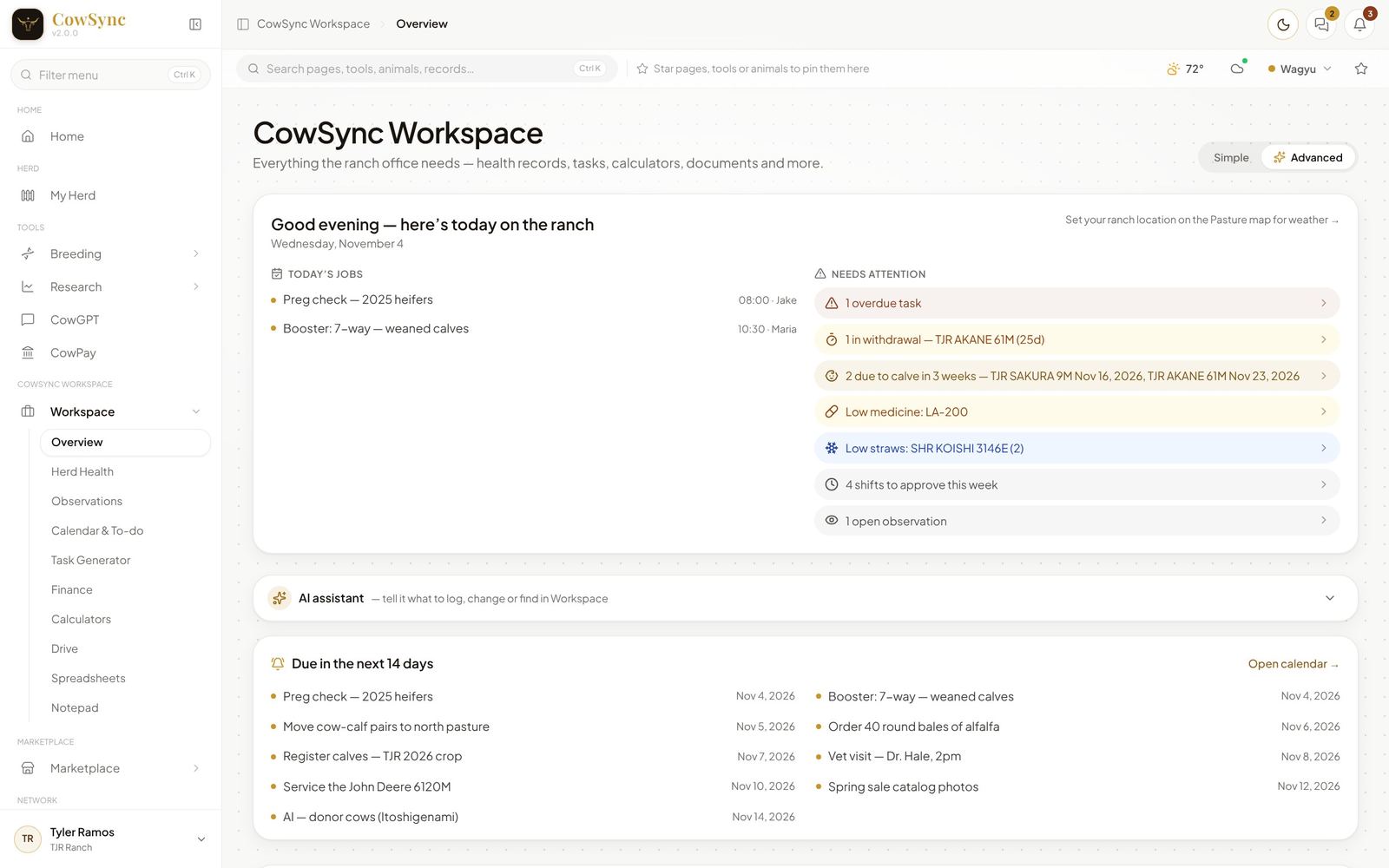
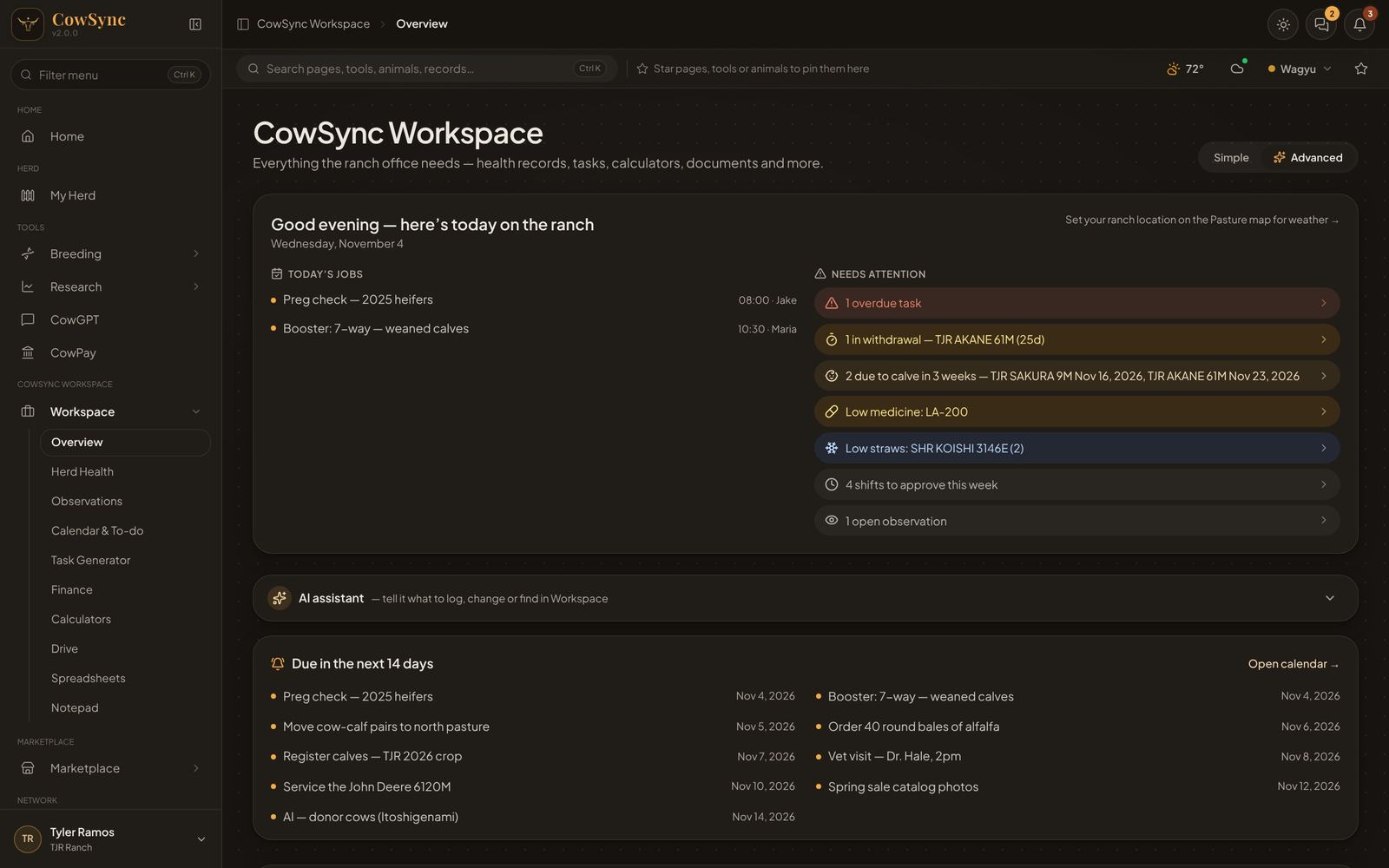
The sun / moon button at the top right of every page flips between light and dark. Your choice is remembered on your account.
The Settings panel
Open it with the Settings button on My Herd. Changes save automatically. Its tabs are General, Herd cards, Herd table and Auctions.
- Theme: Light, Dark or System (match this device).
- Accent color: Gold, Sage, Rust or Slate for highlights, buttons and charts.
- Scoring for dual-registered animals: whether animals with both US EPDs and Australian WBVs are ranked and shown with one system or the other.
- Card sections: drag (or use the arrows) to reorder what shows on a herd card, and use the eye to hide a section. There are Presets, a Live preview and Reset.
- Columns: reorder and hide columns in the herd table, with a preview.
Where the menu sits
On a computer you can put the main menu along the top or down the left or right side. Open the menu under your name and pick Top, Left or Right under Navigation. CowSync remembers it on that computer.
Workspace display
- Simple or Advanced (top right of the Workspace overview). Simple shows the everyday tools. Advanced shows every tool. See Workspace overview.
- Star pages, tools or animals and they pin to the strip at the top, and to a Favorites row on the Workspace hub.
Notifications & automations
Open Workspace → Notifications & automations. Changes save as you go, and a “Saved” note shows top right.
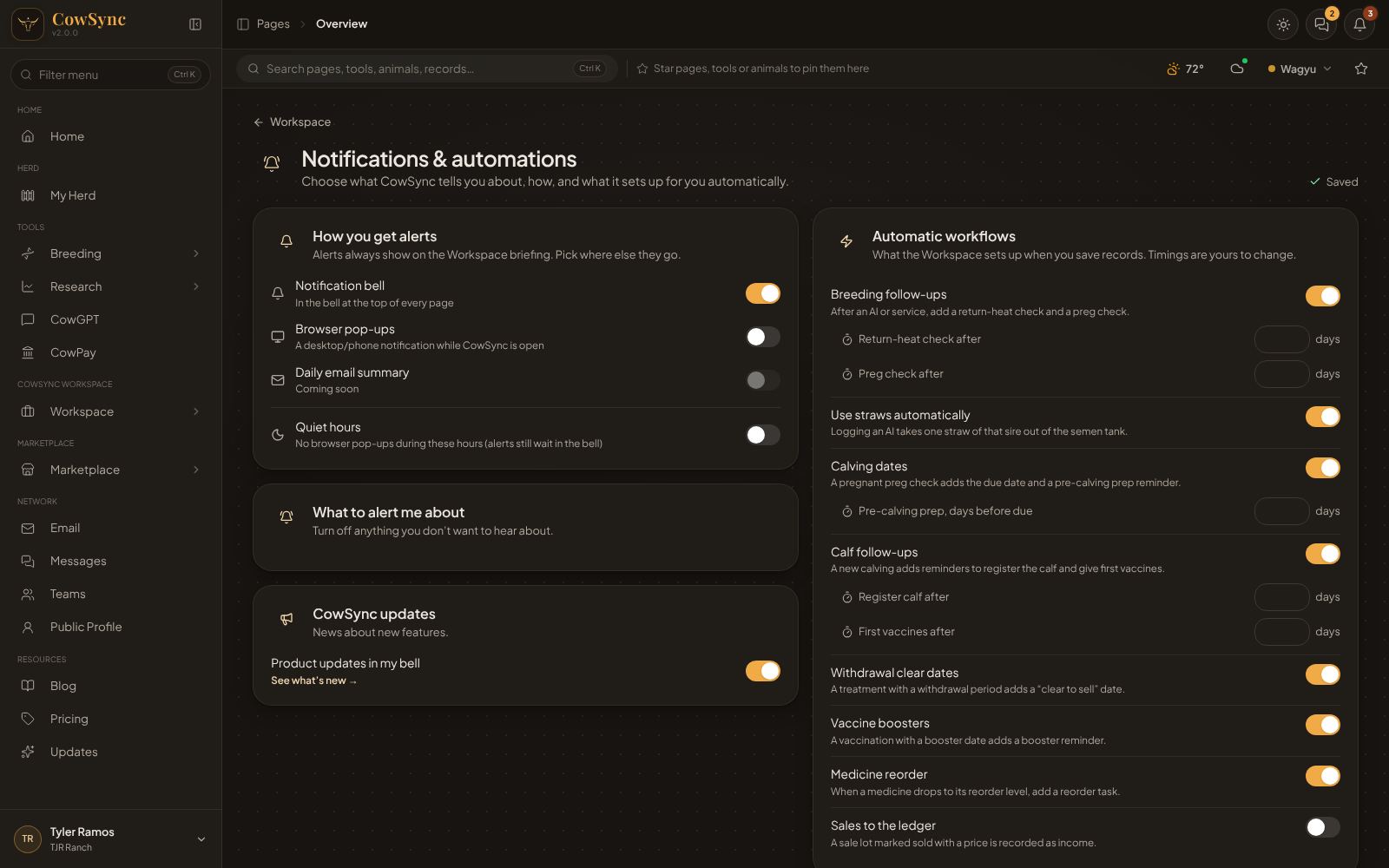
- How you get alerts: alerts always show on the Workspace briefing. Switch on the Notification bell (at the top of every page) and Browser pop-ups (your browser asks for permission the first time). Daily email summary is marked Coming soon.
- Quiet hours: no browser pop-ups between the hours you pick. Alerts still wait in the bell.
- What to alert me about: turn off anything you don’t want to hear about. Some alerts have a timing, such as how many days before calving or before a withdrawal clears.
- CowSync updates: Product updates in my bell.
- Automatic workflows: the follow-ups the Workspace sets up when you save records, such as a return-heat check and preg check after an AI, pre-calving prep, registering and vaccinating a new calf, a low-straw alert and a reminder before a document expires. Each has days you can change. Only the Workspace owner can switch workflows on or off, but you can change the timing for yourself.
- Recently set up for you: the last things added automatically.
Your account
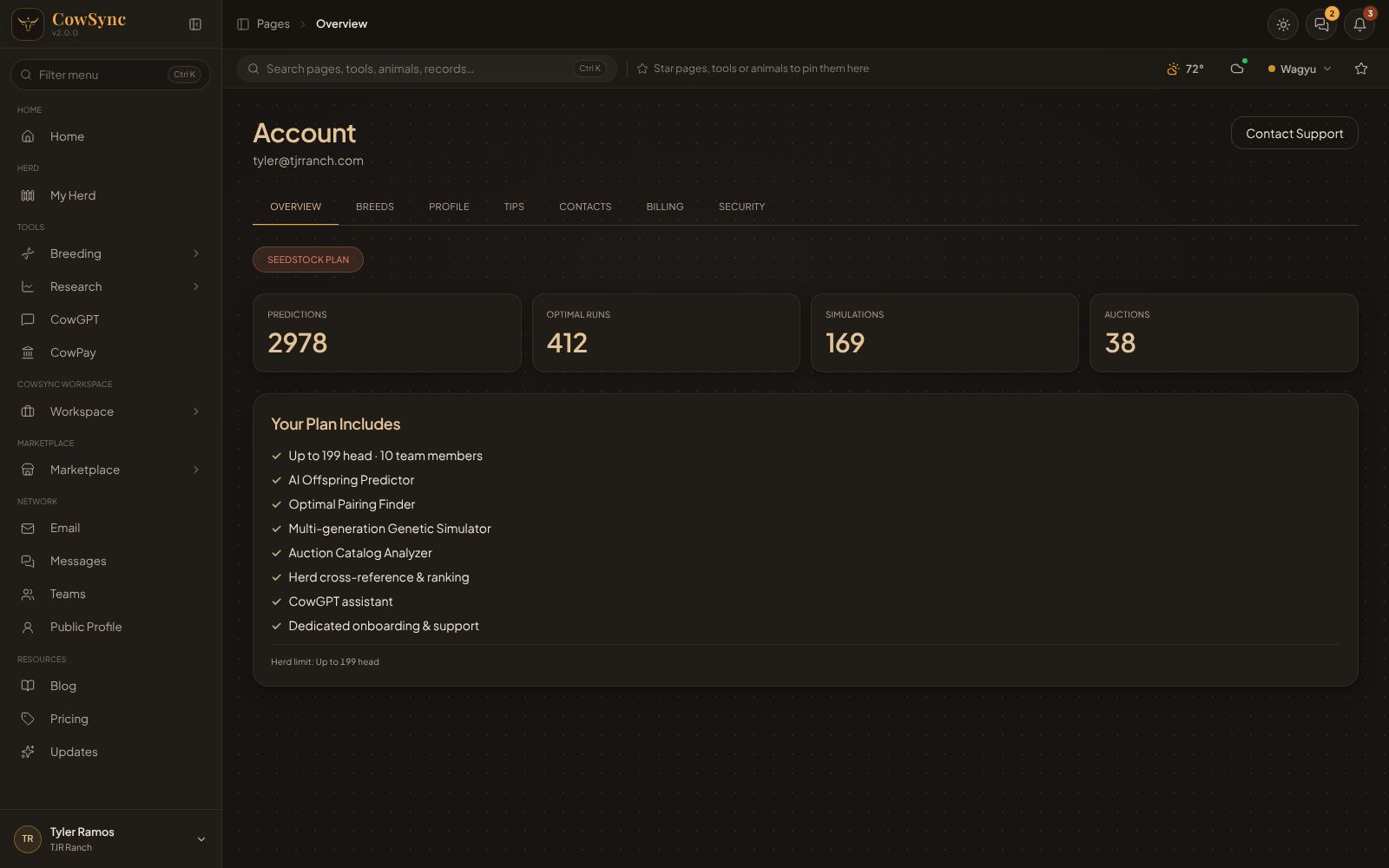
Click your name (top right, or bottom left when the menu is on the side) and choose Account & Billing. Sign out is in the same menu. The Account page also has a Contact Support button at the top right, which opens your support chat.
| Tab | What is there |
|---|---|
| Overview | Your plan, counts of predictions, optimal runs, simulations and auctions, and Your Plan Includes with your herd limit. |
| Breeds | Choose which breeds CowSync works with. You can swap between them from the top bar. |
| Profile | Full Name, Phone Number, Operation Name and Location, then Save Changes. Email cannot be changed here. Ask us in the support chat if needed. Sign Out is at the bottom, under Danger Zone. |
| Tips | A short tip shows in the bottom-right corner every few minutes while you work. Turn it off here. |
| Contacts | A shared address book for your team. Add buyers, vets or breeders, email reports to them and see what you have sent. |
| Billing | Your plan and price. Change plan goes to the pricing page. To cancel, Cancel — contact us. |
| Security | Change Password: we send a verification code to your email, you enter it, then type the new password twice. |