CowSync Guide › My Herd & genetics
My Herd
Your digital herd book: add, import, find, filter, sort and report on every animal, straw and embryo you own.
My Herd is your herd book. Every animal you own (bulls, cows, heifers, steers) plus semen straws, embryos and eggs lives here with its registration, pedigree and EPDs or WBVs. The breeding tools all work from this list. Open it from My Herd under Herd in the menu.
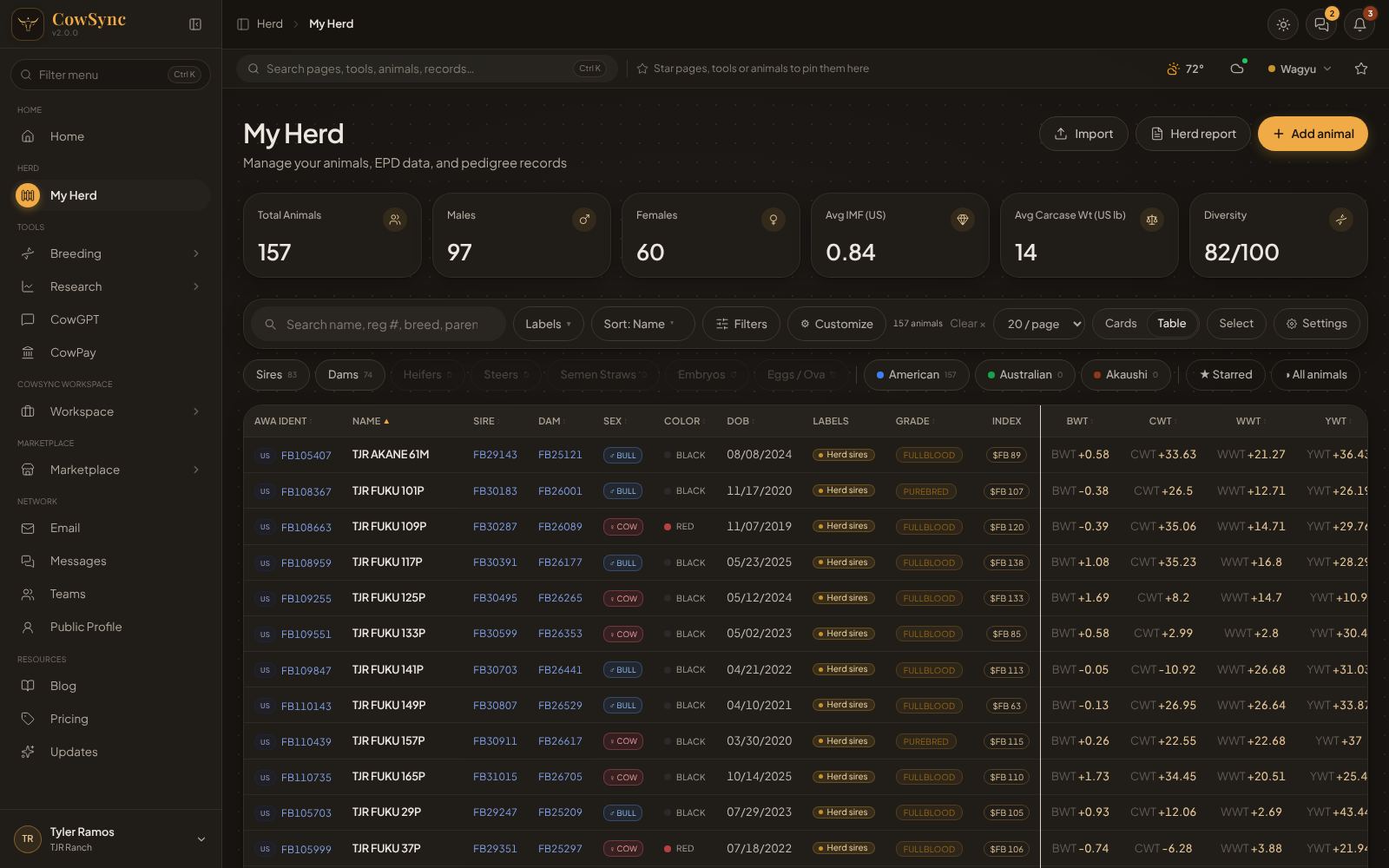
What's on the screen
- Top-right buttons: Import, Herd report and Add animal.
- Number cards across the top. By default: Total Animals, Males, Females, Avg IMF (US), Avg Marble Score (AU), Avg Carcase Wt (US and AU) and Diversity. Cards only show when your herd has that kind of data.
- The filter bar: search, Labels, Sort, Filters, Customize, the animal count, Clear ×, page size, Cards / Table, Select and Settings.
- A row of round buttons under the bar for type, registry, starred and real/predicted animals.
- Your animals, as cards or a table, with page numbers at the bottom.
A brand-new herd shows No animals yet with a + Add Your First Animal button. If your filters hide everything, you'll see No animals match your filters. and a Clear all filters link.
Adding an animal
- Click Add animal. The Add Animal to Herd form opens.
- Use Search the Database to type a registration number or name. CowSync looks in the US, Australian and Akaushi registry records; pick a match and the name, parents and EPDs fill in for you.
- Or type the registration number into the registration box. If it's found in American AWA you'll see "Found in American AWA… auto-filled". If not, fill in the details yourself.
- Set Animal Type (bull, cow, heifer, steer, semen, embryo or egg). For semen, embryos and eggs you can set a Quantity.
- Optional: click the box under Photo to add a picture (JPEG, PNG or WebP, up to 8 MB), fill in Animal Details (category, grade, coat color, date of birth, horn/poll status, birth country, genomic inbreeding and diversity), and the Pedigree (sire, dam and grandparents).
- Have an EPD printout? Paste it into the EPD box and click Parse & Fill.
- More add-ons (optional) holds breeder and owner, brand/tattoo, service type, status, international ID, EID, metal/BANGs ID, DNA profile ID, genetic makeup and genetic condition test results (+ Add condition).
- Click Add Animal. To change an animal later, use Edit on its card and click Save Changes.
Importing many animals
- Click Import. The Import Animals window opens.
- Drop your spreadsheet file on the box, or click browse to find it. Excel files (XLSX or XLS) and CSV or TSV files (plain spreadsheet files that Excel can save and open) all work. The first row must be the column headings. You can also paste the text of a CSV file into the box below.
- CowSync recognizes column headings like name, reg (or registration_number), sex, breed, dob (or birth_date), bw, ww, yw, milk, marb, re, fat, cw, imf and ema. Capitals don't matter.
- Check the preview, then click Import N animals. Click ← Change file to start over.
From an AWA export
- Log in to the AWA portal at awa.helicalco.com.
- Go to Animals, click Export and choose CSV. Save the file.
- In CowSync, click Import and drop that file on the box.
- CowSync recognizes an AWA file, looks up each animal in the registry records and shows a list to choose from. Animals already in your herd are marked duplicate and start unticked (ticking one updates its record).
- Use Select all, Deselect all or the search, then click Import N Animals.
The steps are also in the Import window under How to export your herd from AWA.
Cards or table
Use the Cards / Table buttons. Cards show each animal with its badges, labels, EPDs and Inspect Animal, Inspect Lineage and Report buttons. The table shows one row per animal with columns: AWA Ident, Name, Sire, Dam, Sex, Color, DOB, Labels, Grade, Index, EPD/WBV traits, Genetic conditions and Actions. Click a column heading to sort by it; click again to flip the order.
The page-size box sets how many show at once: 9, 18, 27 or 36 cards, or 10, 20, 30 or 50 rows.
Finding animals
- Search: type a name, registration number, breed or parent.
- Type buttons: Sires, Dams, Heifers, Steers, Semen Straws, Embryos, Eggs / Ova. Each shows a count; grey ones mean you have none. You can pick more than one.
- Registry buttons: American, Australian, Akaushi.
- ★ Starred: only animals you've starred (the star on each card or row).
- All animals / Real only / Predicted only: click to cycle. Predicted animals are calves saved from the breeding tools.
- Labels: your own tags. See Labels & tags.
- Filters: opens a row with EPD Filter, WBV Filter, Akaushi Filter (pick a trait, then type a Min and/or Max) and Poll Filter (Any, Polled, Het Polled, Homo Polled, Horned).
- Sort: Name, Newest, AWA EPDs (IMF, CWT, BWT) or Breedplan WBVs (MS, CWT, 200D, BW).
- Clear × removes every filter at once.
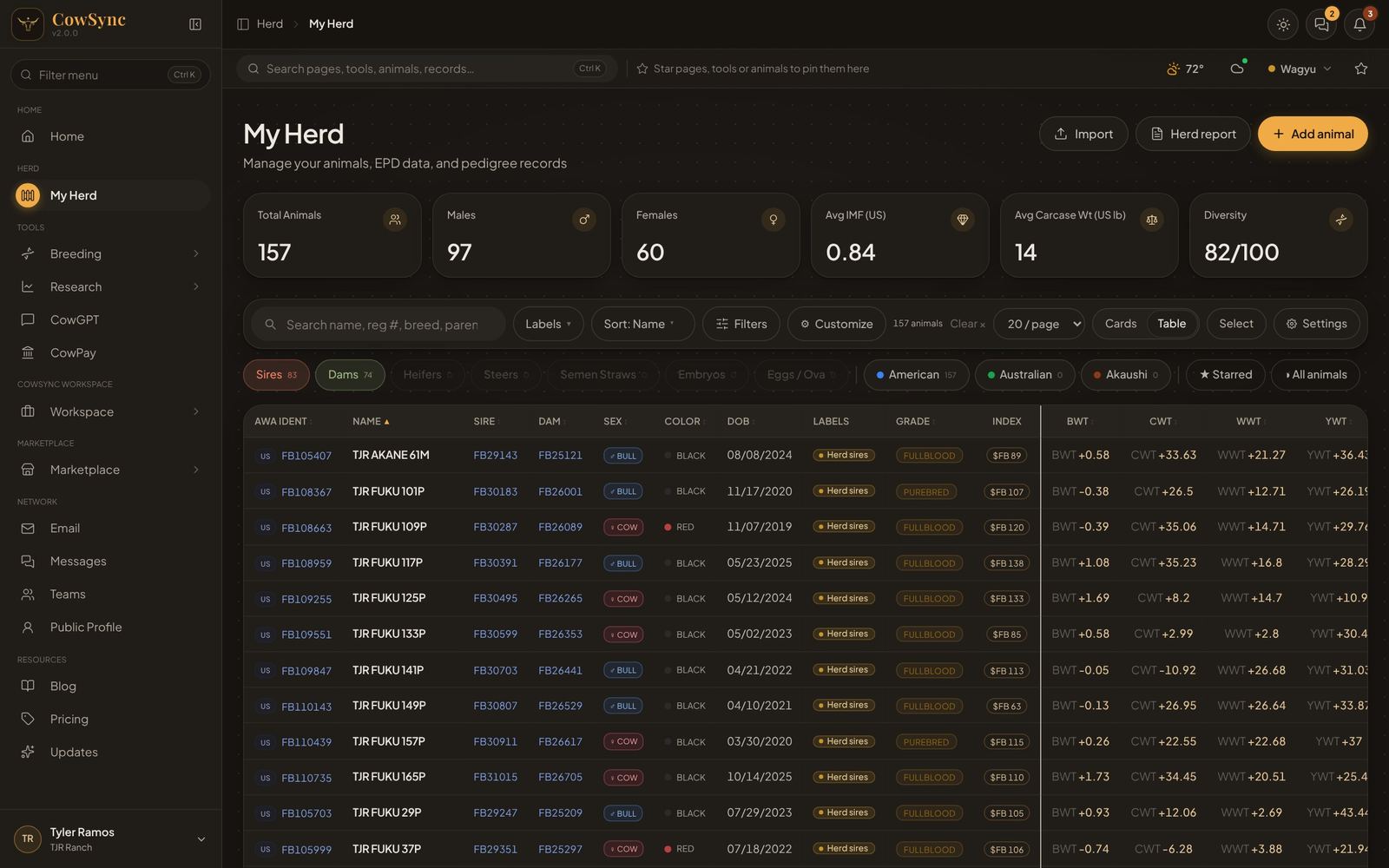
Your filters are remembered when you come back.
Multi-registered animals
If some animals are registered with more than one association, a Multi-registered bar appears. Pick Native, American, Australian or Akaushi to choose whose data the whole herd shows. To change just one animal, right-click it (table view) and use Show data as. Click – to tuck the bar away.
Right-click menu
Right-click any card or table row for: Edit labels, Inspect lineage, Inspect animal, Inspect progeny, Edit details, Predict with this animal, Add to Mating Planner, Find best match and (for bulls and semen) Run in simulator.
Selecting several animals
- Click Select. A gold bar appears. Tap cards or tick rows to select them.
- Use Select all, This page or Clear.
- Click Edit to change Animal Type, Grade, Category or Status (Active/Deceased) for all of them at once. Only the boxes you fill in change.
- Click Delete to remove them, or Show as US, AU, AK or Default for multi-registered animals.
- Click ✓ Done when finished.
Herd report
- Click Herd report.
- Pick a file type: PDF, Word, Excel, CSV, PowerPoint and others.
- Download it to your computer, or email it to people in your team's address book (see Account → Contacts).
Each card also has its own Report button for one animal.
Customize and Settings
- Customize picks which number cards show at the top (Customize dashboard). Tick the ones you want, then Save, or Reset to default.
- Settings opens a larger window. Changes save as you make them:
- General: Theme (Light, Dark, System), Accent color (Gold, Sage, Rust, Slate), and Scoring for dual-registered animals (American EPDs or Australian WBVs).
- Herd cards: drag card sections into a new order or hide them with the eye. Presets: Default, Compact, Data-first, with a live preview.
- Herd table: Columns. Drag to reorder, click the eye to hide or show, Reset to start over.
- Auctions: what auction catalog cards and filters show.