CowSync Guide › My Herd & genetics
Labels & tags
Make your own colored labels, put them on animals, and filter My Herd by label.
Labels are your own colored name-tags for animals in My Herd, such as "Herd sires", "Donor cows", "Sale 2026" or "Keep". They show as small colored pills on each card and in the Labels column of the table, and you can filter My Herd to show only animals with certain labels.
"Predicted" is not a label. It's a separate badge CowSync puts on calves saved from the breeding tools. You can't remove it, and the All animals / Real only / Predicted only button on My Herd is how you filter those.
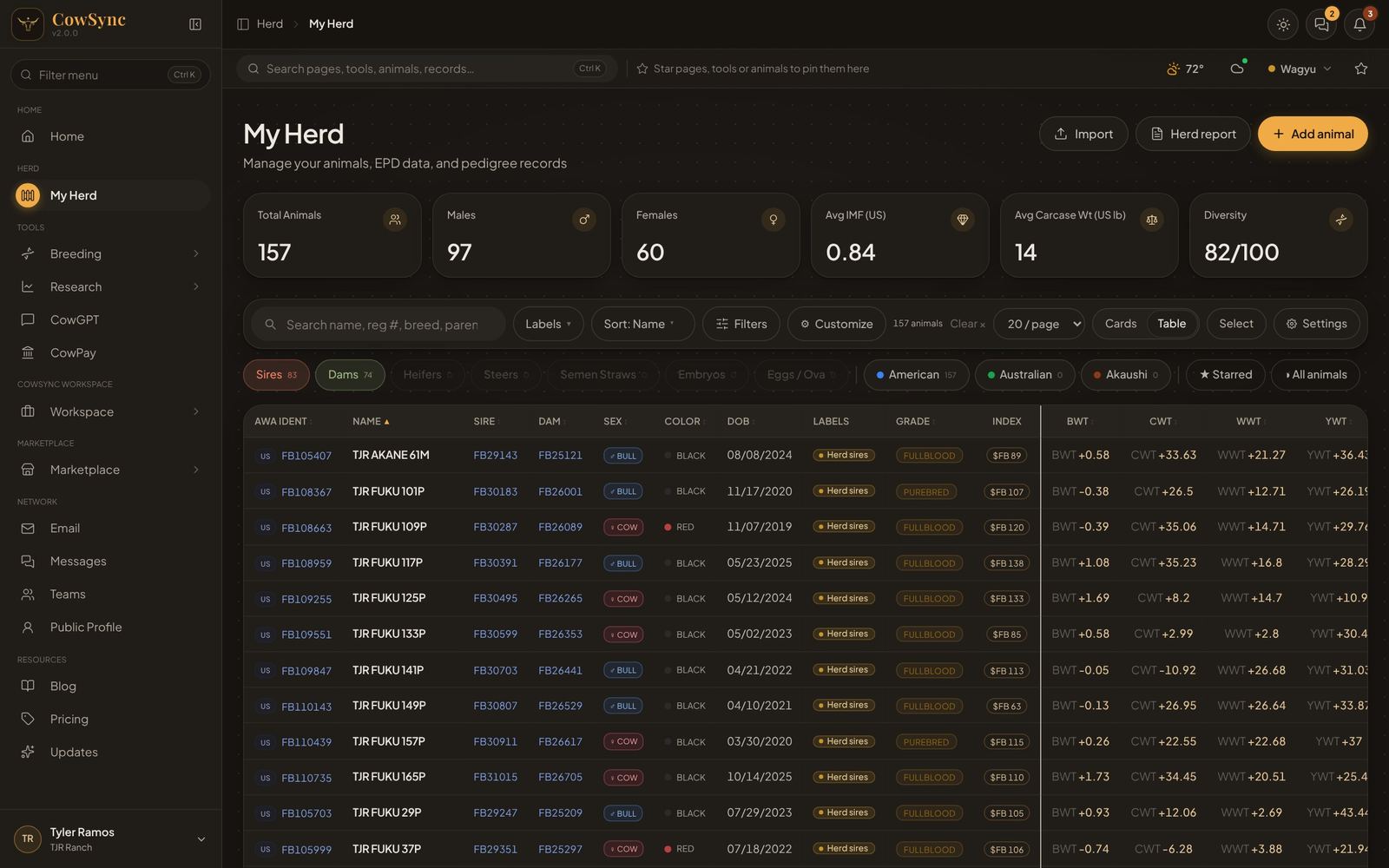
Creating a label
There are two places to make one:
From the Labels filter on My Herd
- Click Labels next to the search box. (This button appears once you have at least one label. For your very first label, use the second method below.)
- At the bottom of the list, click + Create new label.
- Type a name, click one of the color dots, then click Add. Press Esc or click Cancel to back out.
While labeling an animal
- Right-click an animal and choose Edit labels (or open Inspect animal and click Edit labels).
- Click + Create new label, type a name and pick one of ten colors. A preview shows how it will look.
- Click Add label. The new label is ticked for this animal straight away.
Putting labels on an animal
- Right-click the animal's card or row in My Herd and choose Edit labels. A window titled Labels · animal name opens.
- Click each label you want; a gold tick appears. Click again to untick. If you have more than six labels, a search box helps you find one.
- Click Save.
You can also do this from the Inspect animal window (Edit labels in its action list).
If you type a new label name and click Save without clicking Add label first, CowSync creates the label and applies it anyway.
Labeling a saved calf
When you save a predicted calf to your herd from the Predictor, Planner, Simulator, Leaderboard or Auction Analyzer, the same label window appears with a Name box on top. Give the calf a name, tick any labels, and click the save button.
Filtering by label
- On My Herd, click Labels.
- Tick one or more labels. The number beside each label is how many animals have it. Use Search labels… or ‹ Prev / Next › if you have a long list.
- The chosen labels appear in a Filtering: row under the type buttons. Click the ✕ on one to remove it, or click Clear N selected in the Labels list.
Seeing labels
- Cards show up to three labels, with "+2" (and so on) if there are more. Hover to see all of them.
- The table shows labels in a narrow column. Hover to see them in full.
- To hide labels from cards, open Settings → Herd cards and click the eye beside Labels. For the table, use Settings → Herd table.
Things to know
- One animal at a time. Labels are put on each animal separately. The Select → Edit option on My Herd changes type, grade, category and status for many animals at once, but not labels.
- Labels can't be renamed or deleted yet. Once a label is made, there's no way to rename it, recolor it or delete it. Pick names you're happy to keep. If you need one removed, ask us in the support chat.
- Labels are shared across My Herd, the Leaderboard and the breeding tools, so a label you make in one place shows up everywhere.