CowSync Guide › Getting started
Navigation & search
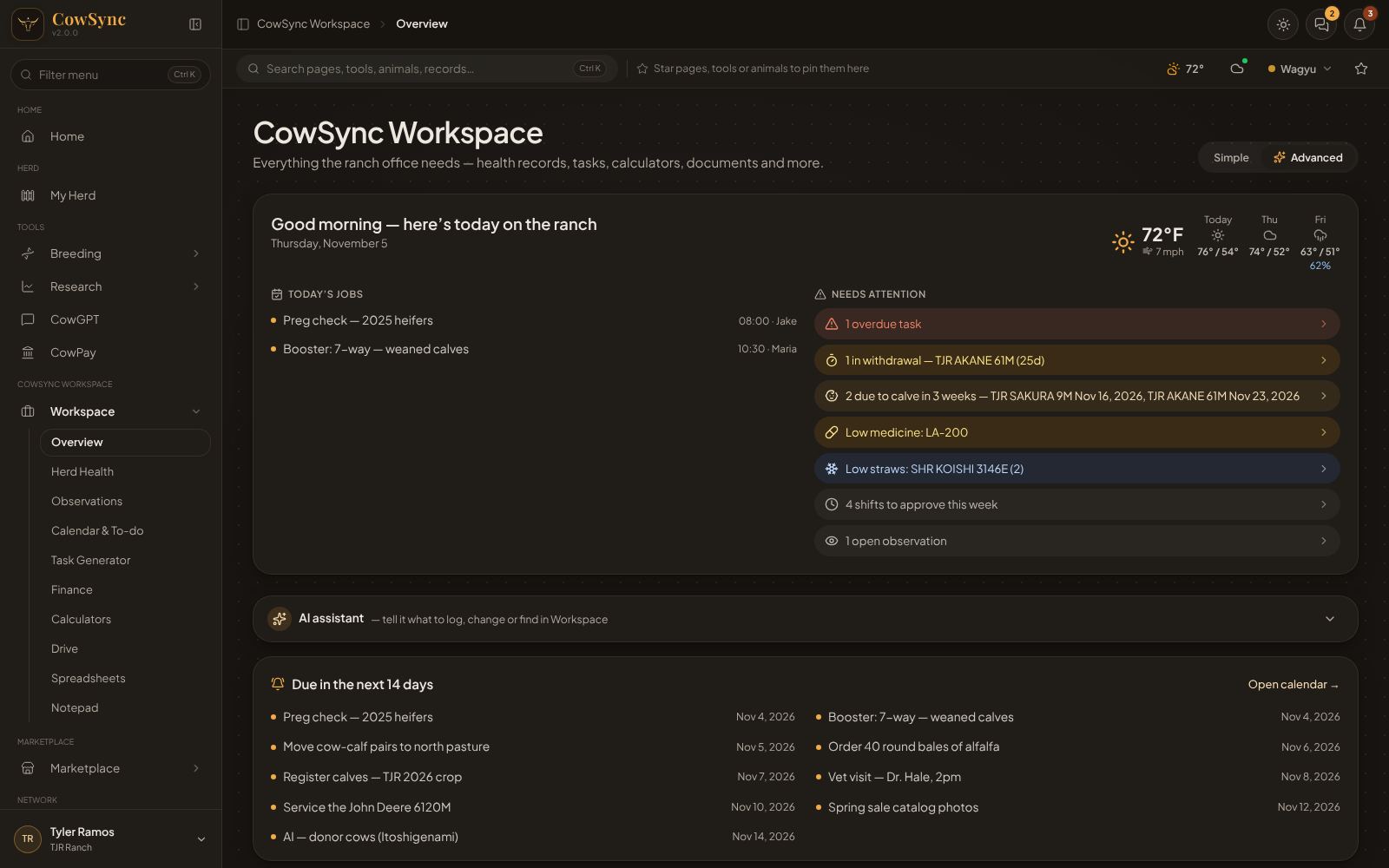
Choose a top or side menu, search everything with Ctrl K, pin favorites, and use the bell, messages, weather, theme and breed buttons.
Some parts of the screen are there on every page: the menu, the search box, your favorites, and the small buttons along the top. This page explains each one.
Top bar or sidebar
On a computer the menu starts as a sidebar down the left side. You can change it: click your picture or name, then under Navigation pick:
- Top: a row of rounded buttons across the top of the screen. Groups like Breeding, Research, Workspace and Marketplace open a small list with a one-line description of each page. On narrower screens the buttons show pictures only; rest the mouse on one to see its name.
- Left (the default) or Right: a menu down that side of the screen. The top bar then shows where you are (for example "Herd › My Herd").
In the sidebar:
- Click a group (like Breeding) to open or close it.
- Type in the Filter menu box to shorten the menu to matching pages. Press Enter to open the first match.
- The small button beside the logo (Collapse sidebar) shrinks the sidebar to pictures only. Click the logo to open it out again.
- Your favorites appear at the top under Favorites.
Search everything (Ctrl K)
The box that says Search pages, tools, animals, records… finds almost anything in CowSync. Click it, or press Ctrl K (⌘ K on a Mac) or / from anywhere.
- Before you type, it lists your Favorites, Recent pages and some Quick actions (New task, Upload a file, New note, Log a weigh-in, Record a treatment, Add an expense or income, and more).
- As you type, results are grouped into Pages & tools, Animals (from My Herd), Records (anything saved in the Workspace) and Actions. Click one to go there.
- At the bottom there are always two extra choices: Everything in the Workspace about "…" (opens the Animal timeline) and Search My Herd for "…".
| Key | What it does |
|---|---|
| ↑ ↓ | Move up and down the results |
| Enter | Open the highlighted result |
| Ctrl + Enter | Open it in a new browser tab |
| Ctrl + D | Add or remove the highlighted result as a favorite |
| Alt + S | Star the page you're on |
| Alt + 1 to 9 | Jump to your first nine favorites |
| Esc | Clear the box, then close it |
Favorites (the star)
Next to the search box is a row that says Star pages, tools or animals to pin them here until you've starred something. Favorites are your own shortcuts.
- Star the page you're on: click the star at the far right of the strip (it turns gold), or press Alt + S.
- Star from search: hover a result and click its star.
- Star a Workspace tool: hover its tile on the Workspace Overview and click the star.
- Reorder: drag a favorite left or right.
- Right-click a favorite for Open, Open in new tab, Rename, Move left, Move right, Copy link and Remove from favorites.
You can pin up to 40 favorites. They're saved to your account, so they follow you to your phone and other computers.
Notifications (the bell)
The bell at the top right shows a red number when something new needs you: tasks assigned to you, things due today or overdue, withdrawal periods, cows due to calve, low stock, invoices, signed agreements and CowSync updates.
- Click the bell to open the list. New items have a gold dot and are split into Today and Earlier.
- Click a notification to go straight to the right page (for example, the Calendar or Herd Health).
- Hover one and click the × to dismiss it, or click Clear all.
- Click Choose what you get (or the gear) to open the Workspace Alerts tool, where you pick which alerts you get and set quiet hours.
Messages
The speech-bubble button beside the bell opens Messages. A gold number shows how many chats have unread messages.
Weather
The weather button in the search strip shows the current temperature at your ranch. A small red or amber dot means there's a weather warning worth reading.
- Click it. The first time, it asks Where's your ranch? Type a town or ZIP (for example "Amarillo") and pick it, or click Use my location.
- From then on it shows right now (temperature, feels-like, wind, humidity, sunrise and sunset), the next 12 hours, the next 7 days, and For the ranch notes such as heat, cold, freeze, spraying, haying or rain advice.
- Click the pencil next to the town name to change location. Click the circular arrow to refresh.
With no signal it shows the last forecast it had, with the time it was fetched.
Cloud mode
The cloud icon beside the weather is Cloud mode, for working without signal. See Cloud mode.
Light and dark
The sun/moon button at the very top right switches between a light screen and a dark screen. CowSync remembers your choice. For more choices (including System, which follows your device, and accent colors), open My Herd → Settings → General.
Breed switch
The button with a gold dot and the word Wagyu is the breed switch. Wagyu (AWA and Breedplan data) is the breed CowSync works with today. Angus is listed with a Soon tag; picking it doesn't change anything yet. The same breeds are shown on Account → Breeds.