CowSync Guide › Operations
Ranch task generator
Pick a season checklist, set one key date, adjust the tasks, and send the whole list to your calendar.
The Ranch Task Generator builds a whole season's to-do list from one key date. Pick a ready-made checklist (a template) like Pre-calving prep, enter your expected first calving date, and every task gets its own day. Nothing goes on your calendar until you click Add … tasks.
To open it, go to Workspace and click the Ranch task generator tile.
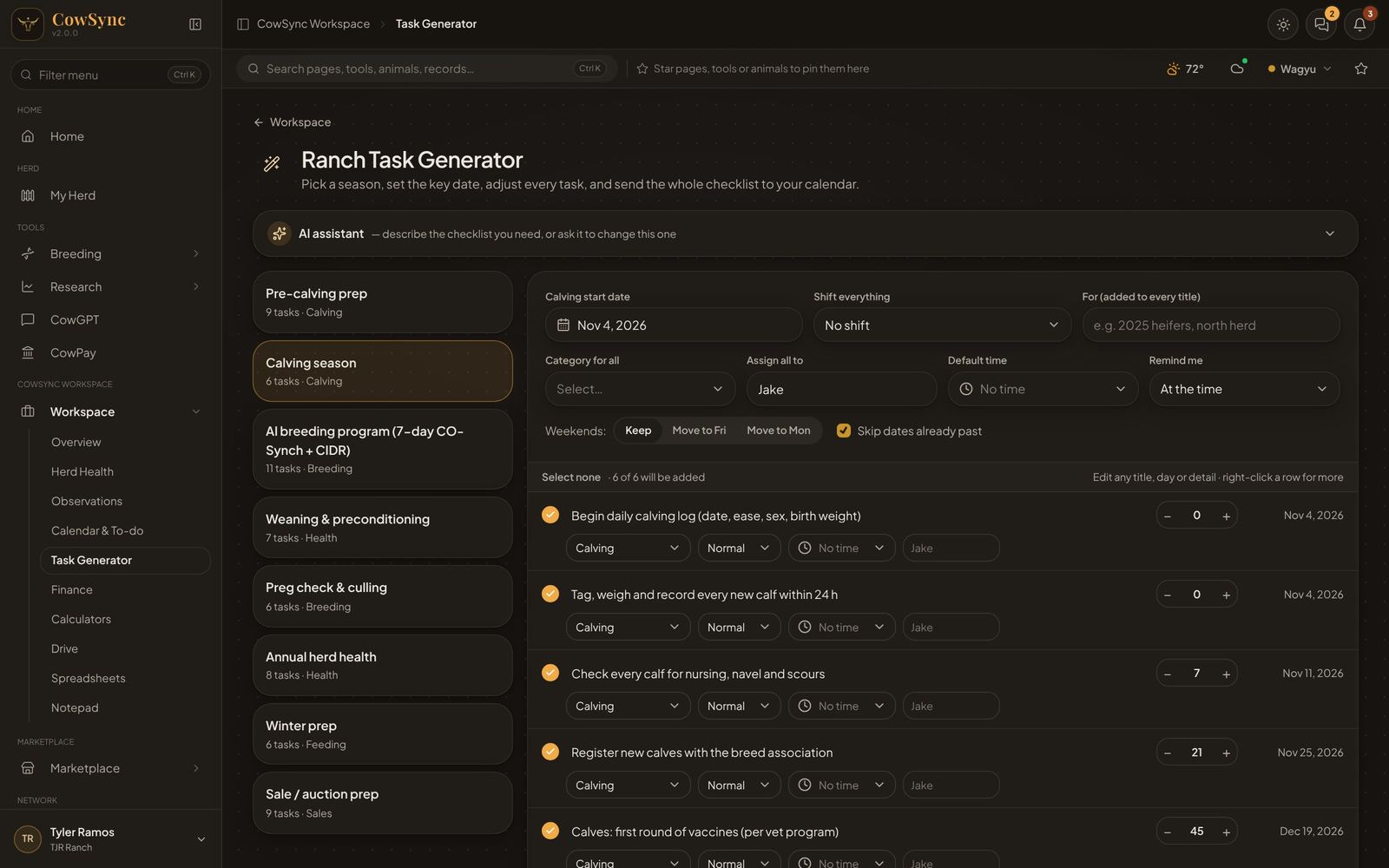
Built-in templates
| Template | Key date | Tasks |
|---|---|---|
| Pre-calving prep | Expected first calving date | 9 (BCS, scour vaccines, calving kit, night checks…) |
| Calving season | Calving start date | 6 |
| AI breeding program (7-day CO-Synch + CIDR) | Day 0 (CIDR in) | 11 |
| Weaning & preconditioning | Weaning day | 7 |
| Preg check & culling | Preg check day | 6 |
| Annual herd health | Start of year | 8 |
| Winter prep | First hard frost | 6 |
| Sale / auction prep | Sale day | 9 |
Templates you save yourself show at the top of the list with a Mine tag.
Make a checklist, step by step
- Click a template on the left.
- Enter the key date (the box is labeled with the template's key date, such as Calving start date).
- Optional settings:
- Shift everything: move every task −14 to +14 days.
- For (added to every title): e.g. "2025 heifers" or "north herd".
- Category for all, Assign all to, Default time and Remind me (at the time, 1 hour, 1 day or 1 week before).
- Weekends: Keep, Move to Fri or Move to Mon. Moved dates get a *.
- Skip dates already past (on by default).
- Look over the rows. Each row has a tick box, the task title (click it to change the words), a − / + box for how many days from the key date, and the date it lands on (red if already past). Under it: category, priority (Normal, High, Low), time and who it is assigned to.
- Untick any you don't need, or click Select none / Select all. Click Add a task at the bottom for your own. Right-click a row for Leave this one out, Duplicate or Delete row.
- The line above the rows says how many will be added (for example "6 of 6 will be added") and warns if some are already on your calendar.
- Click Add … tasks. A message confirms they were added. Click Open calendar to see them.
Save your own template
- Change the rows the way you like them.
- Click Save as my template.
- Type a name (it starts as the template name plus "(mine)") and click Save.
It appears at the top of the list with a Mine label. Right-click it to Delete template.
Categories
The category lists use the same calendars as Calendar & to-do (General, Health, Breeding, Calving, Feeding, Pasture, Equipment, Sales, Office, Staff). Type a new name to add one; it shows up on the calendar too.
Use the AI assistant
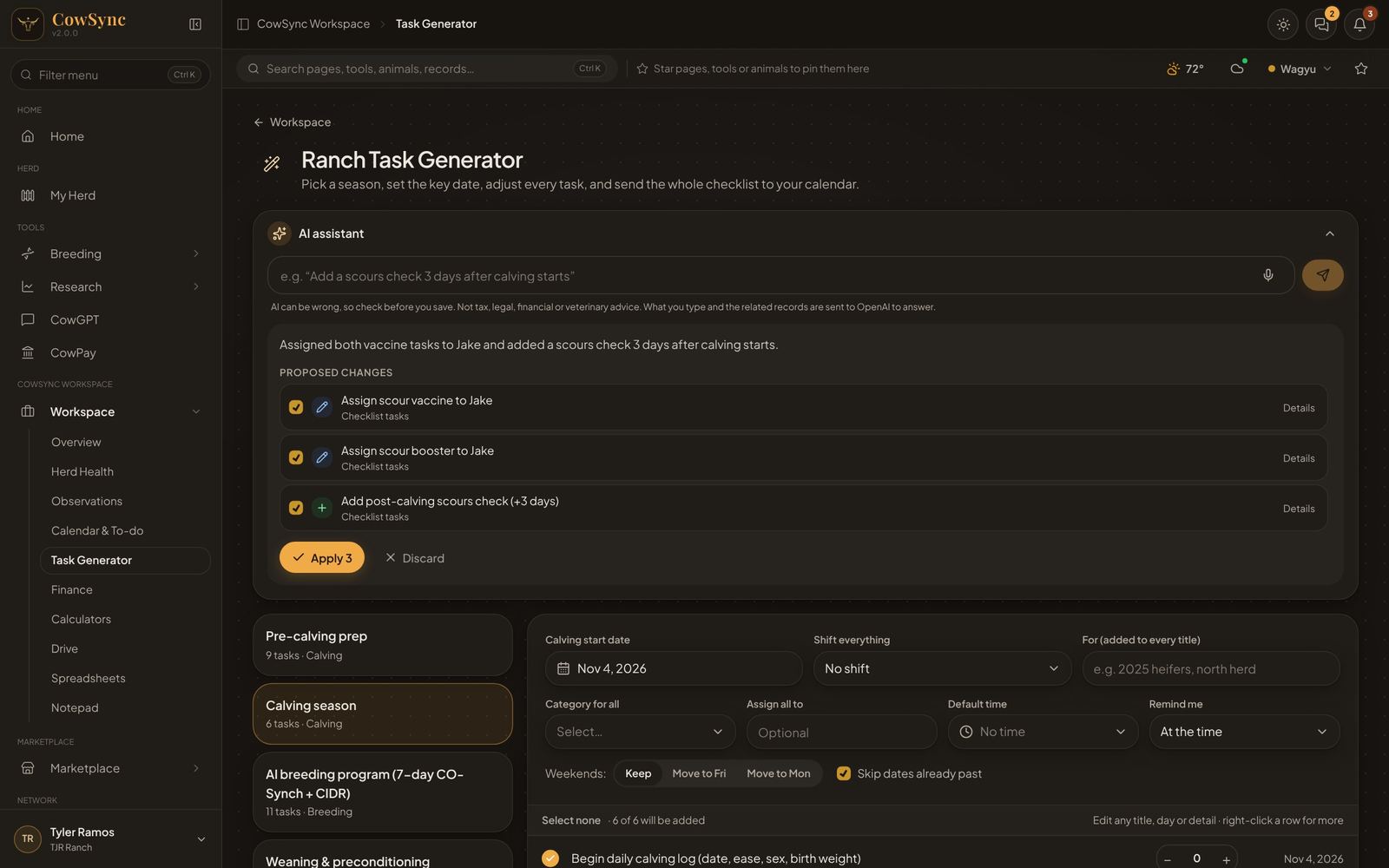
The AI assistant bar edits the rows on screen. Try "Add a scours check 3 days after calving starts", "Assign every vaccine task to Jake" or "Make this a 60-head heifer checklist". Check the proposed changes and click Apply. It still does not add anything to the calendar until you press Add … tasks.
Other tools can open the generator for you. For example, right-clicking a preg check with a due date offers Build a pre-calving checklist.